Managing Account Settings
Need to check your subscription limits, update your agency branding, or review your current plan? This guide walks you through the Account Settings page and what you can manage from there.
In this article:
Open Account Settings
In the sidebar, select Settings. This is where you manage your subscription details, workspace limits, and agency branding.
Review Your Subscription
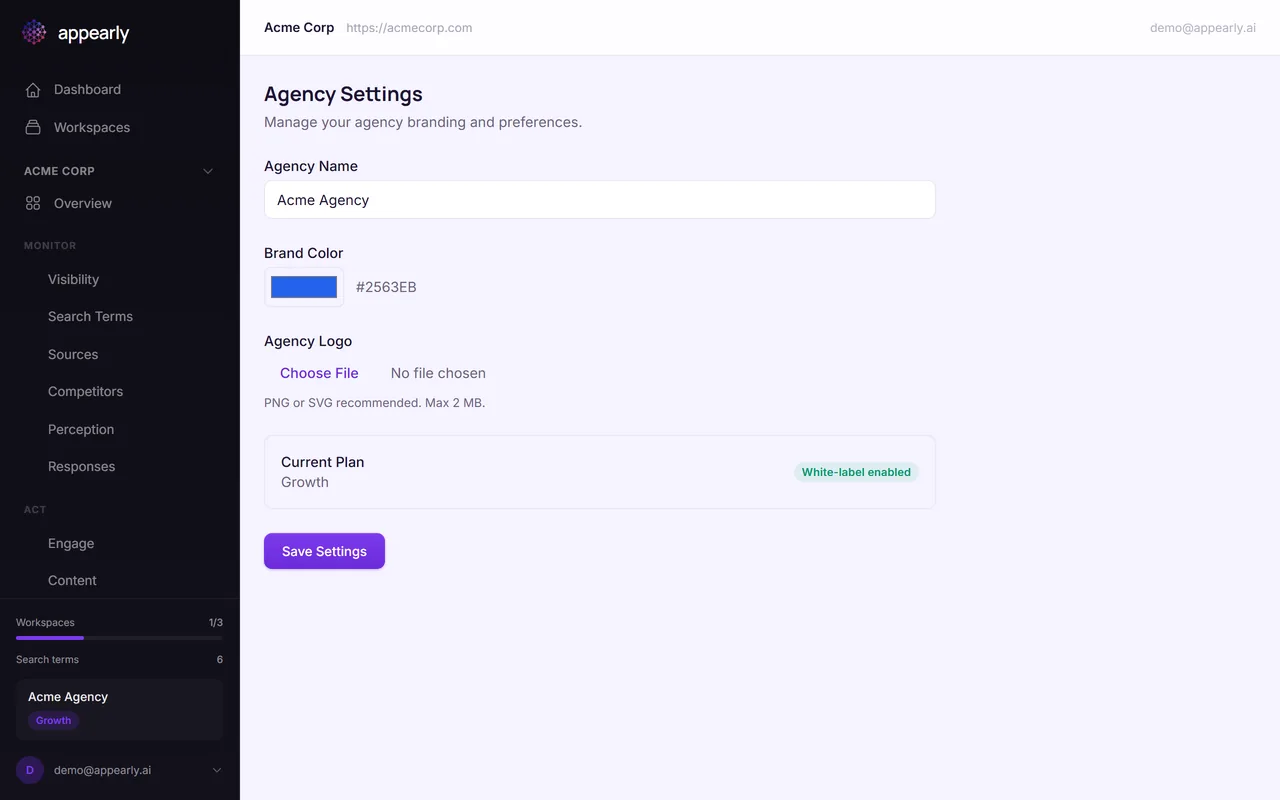
At the top, you'll see your current subscription and what it includes: the number of workspaces you can create, keywords per workspace, competitors per workspace, and which AI engines are included in your scans.
Appearly offers 3 subscriptions: Starter, Growth, and Agency. Each one unlocks more workspaces, more AI engines, and higher limits.
Check Your Workspace Limits
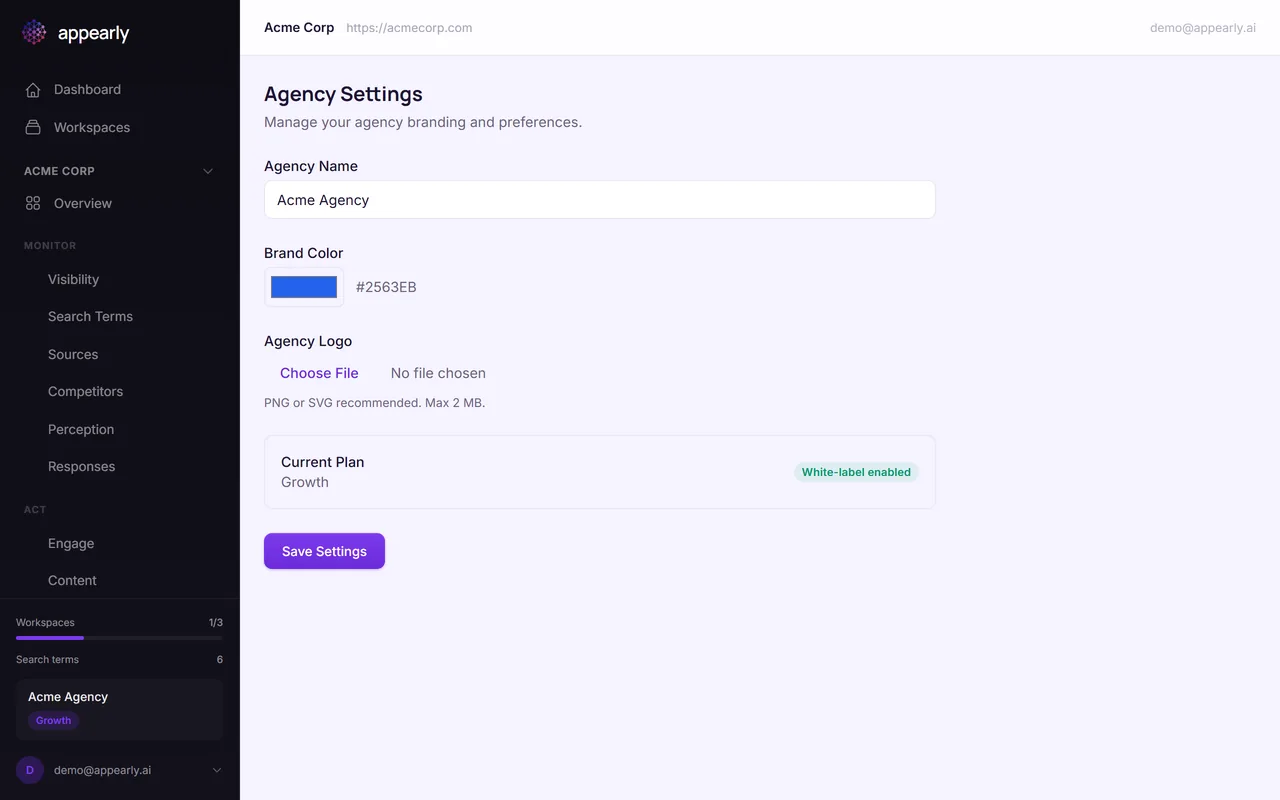
Each subscription has specific limits:
- Starter: 1 workspace, 10 keywords per workspace.
- Growth: 3 workspaces, 10 keywords per workspace.
- Agency: 10 workspaces, 10 keywords per workspace.
If you're approaching a limit, you can remove inactive workspaces or keywords, or upgrade to a higher subscription for more capacity.
Update Agency Details
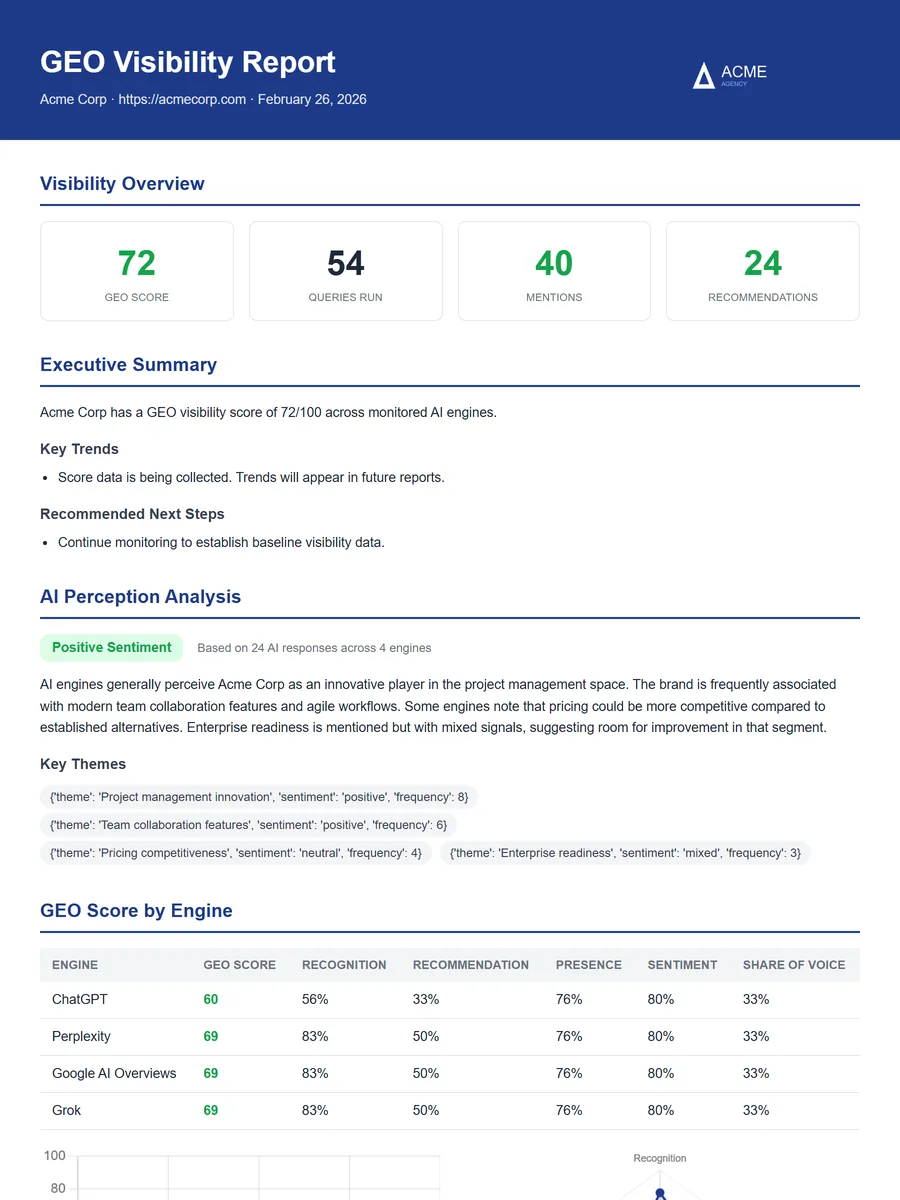
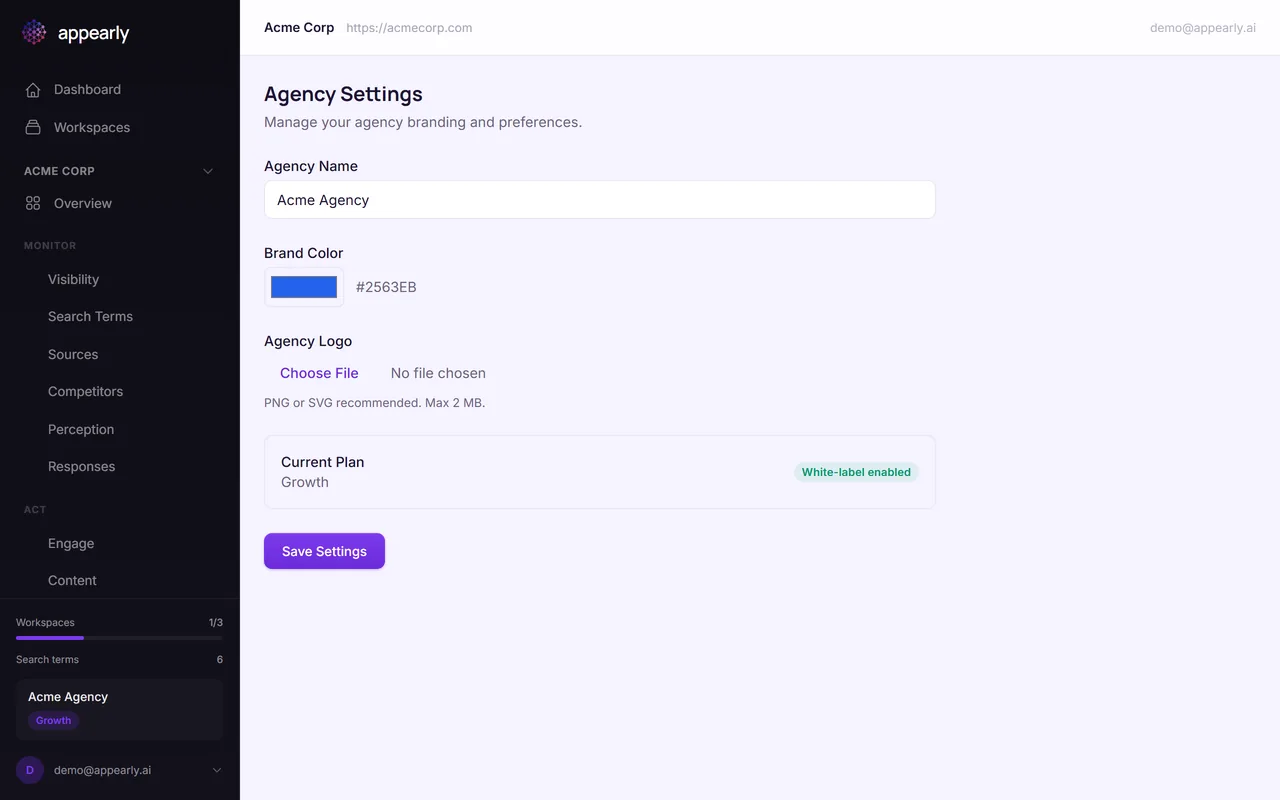
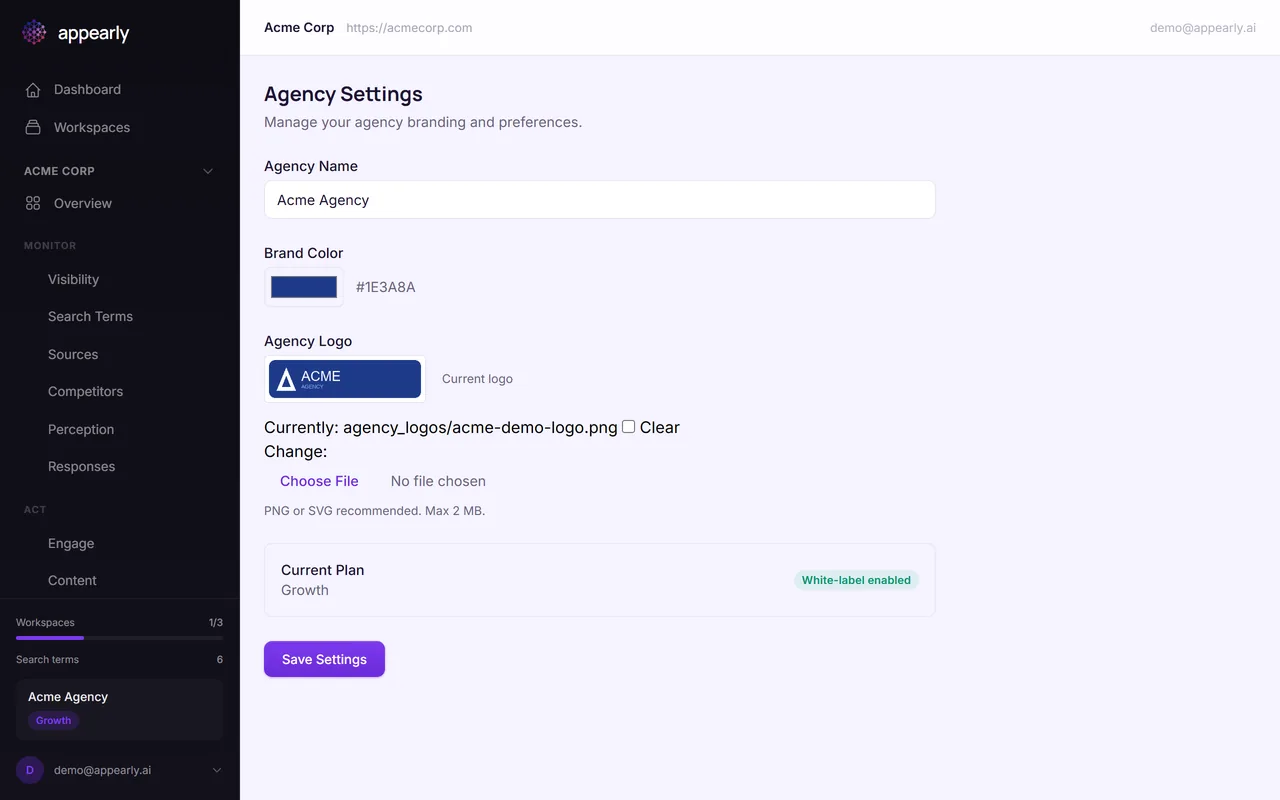
Scroll down to update your agency name, logo, and brand color. The brand color is used throughout the interface, and both the logo and color appear in your exported reports.
Here's how your agency branding appears in an exported PDF report: the logo in the header and the brand color as an accent throughout the document.