Creating and Using Action Plans
Knowing what's wrong is only half the battle. Action Plans turn your audit findings and visibility gaps into a prioritized checklist of specific fixes, each with implementation details you can hand directly to your development team. This guide shows you how to generate, work through, and export an action plan.
In this article:
- Open the Action Plans Section
- Generate a New Plan
- Review the Plan
- Use the Code Snippets
- Mark Items Complete
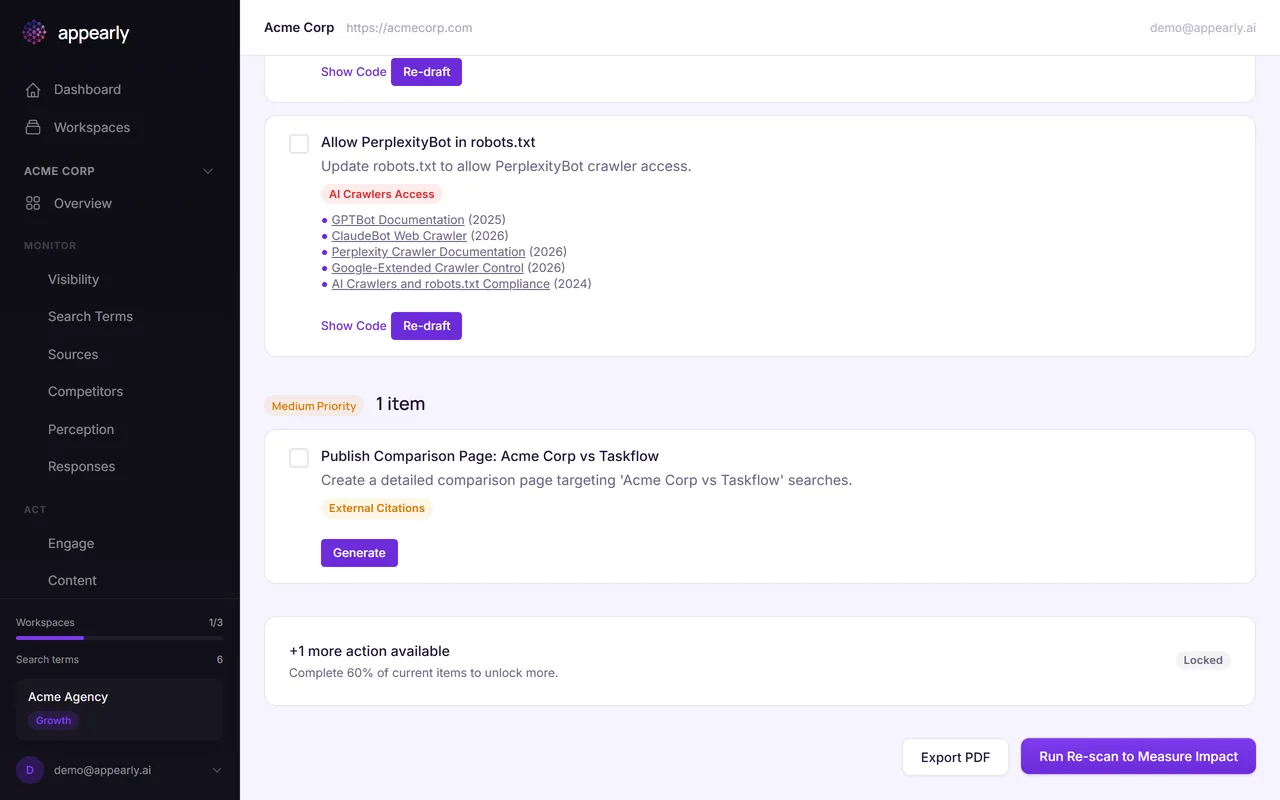
- Reveal More Items
- Export to PDF
Open the Action Plans Section
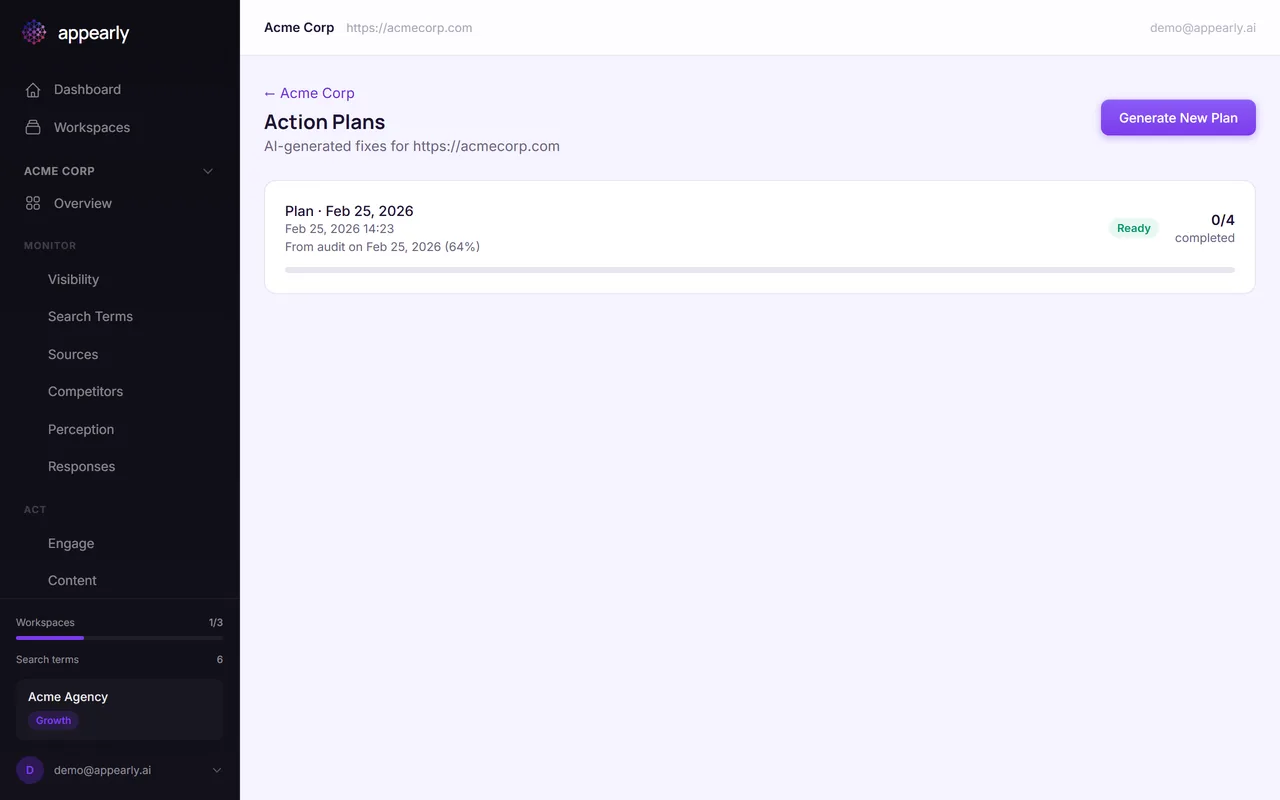
In the sidebar, select Action Plans (under Act). This is where all your generated plans live.
Generate a New Plan
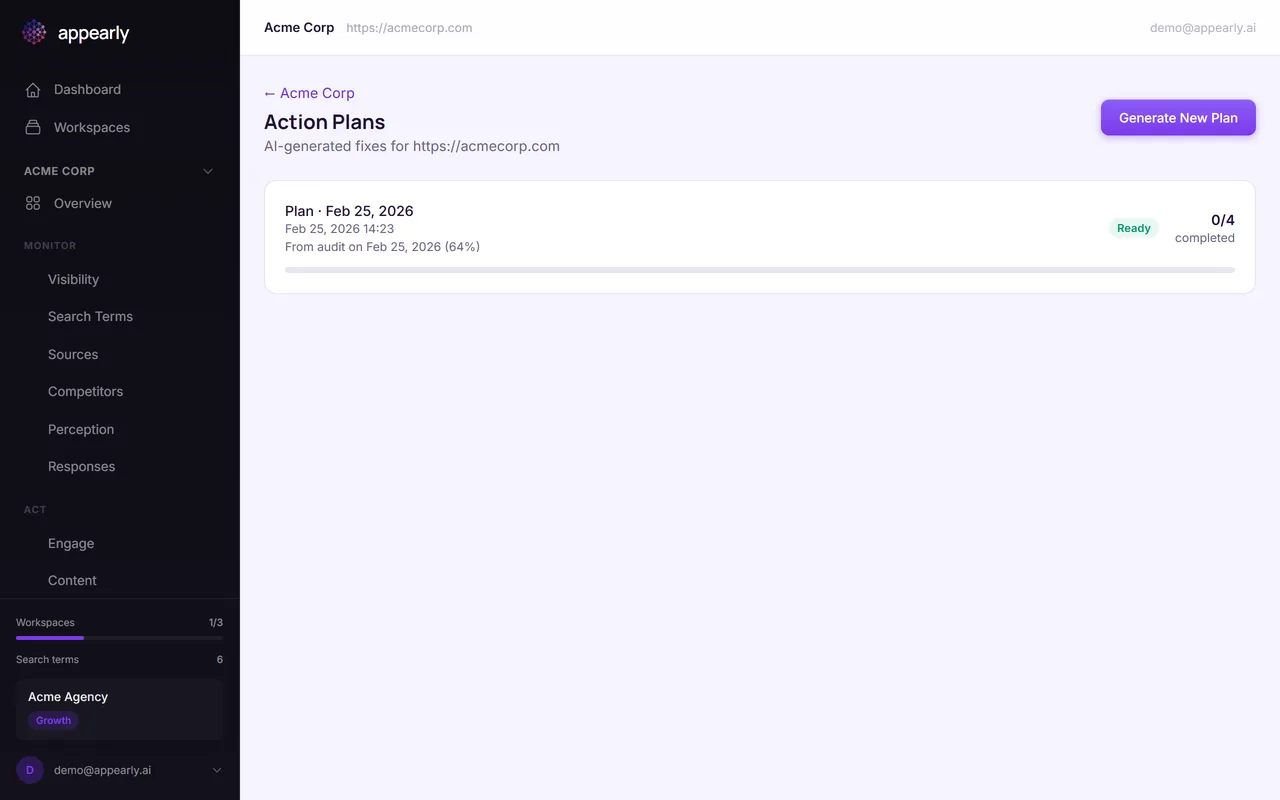
Select Generate New Plan. Appearly analyzes your latest audit results, visibility scores, and competitor data to create a prioritized list of fixes. The plan focuses on changes that'll have the biggest impact on your AI visibility.
Review the Plan
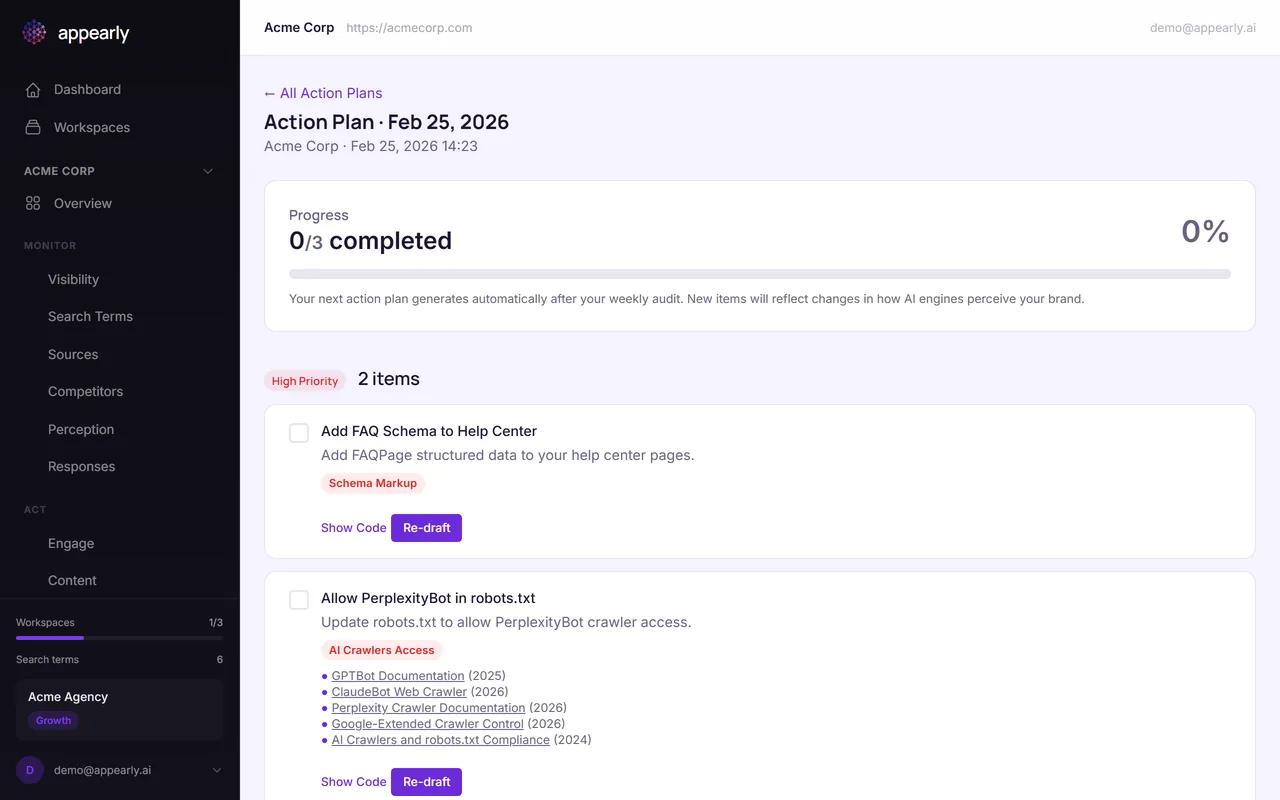
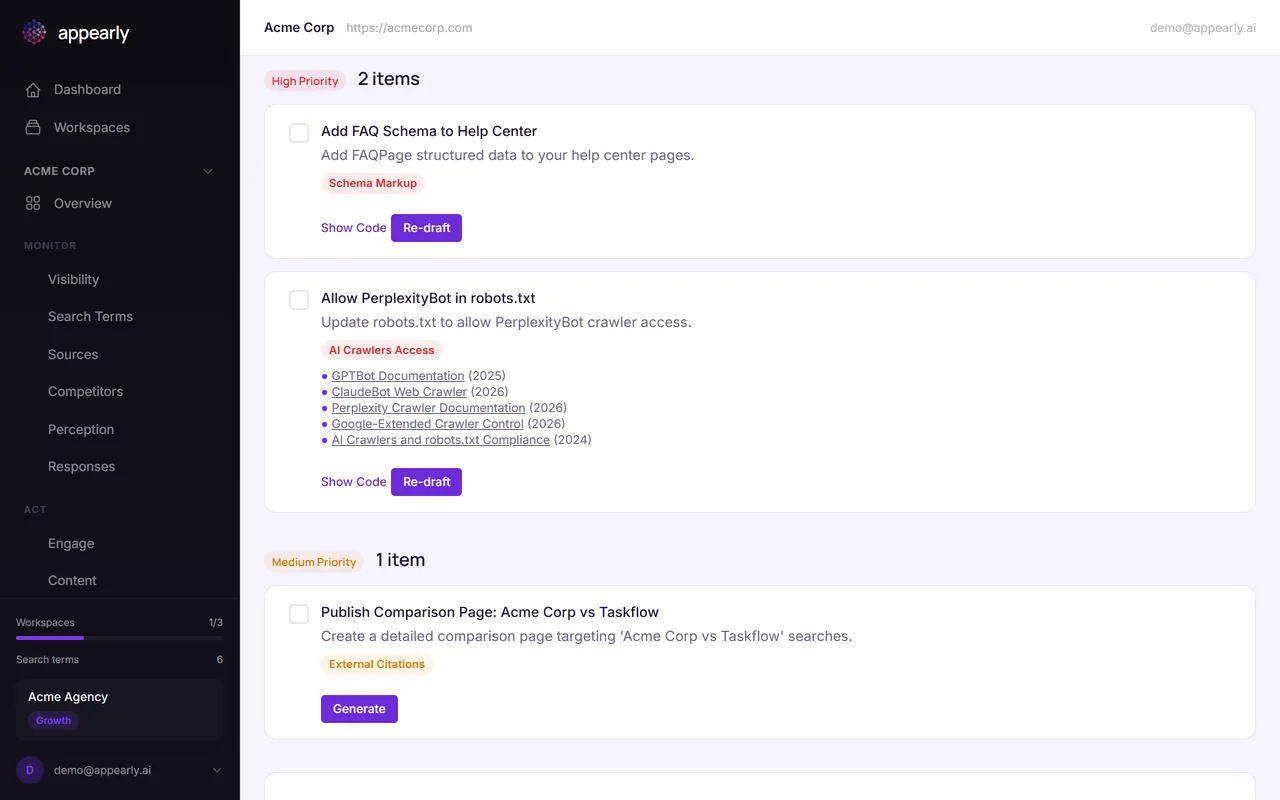
Each action item has a category (like Schema Markup or Content Quality), a priority level, and a detailed description of what needs to change and why.
Items are sorted by priority, so you can tackle the most impactful fixes first without getting overwhelmed.
Use the Code Snippets
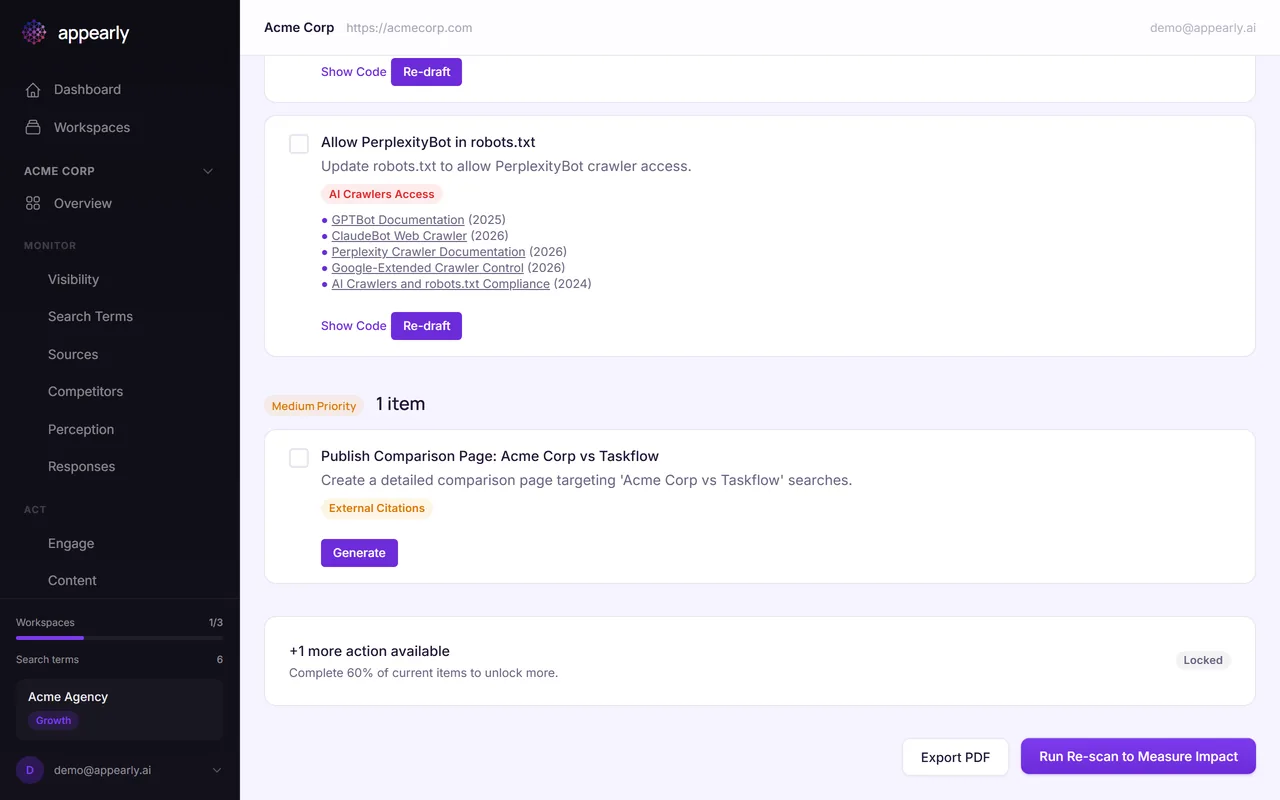
Many action items come with ready-to-use code. For example, a Schema Markup item might include the exact JSON-LD you need to add to your page.
Select the copy button to grab the code and paste it directly into your website's source. No need to write it from scratch.
Mark Items Complete
As you implement each fix, select the checkmark to mark it complete. The progress bar at the top of the plan tracks your overall completion percentage.
This helps you track implementation progress across your team and gives you a clear sense of how much work remains.
Reveal More Items
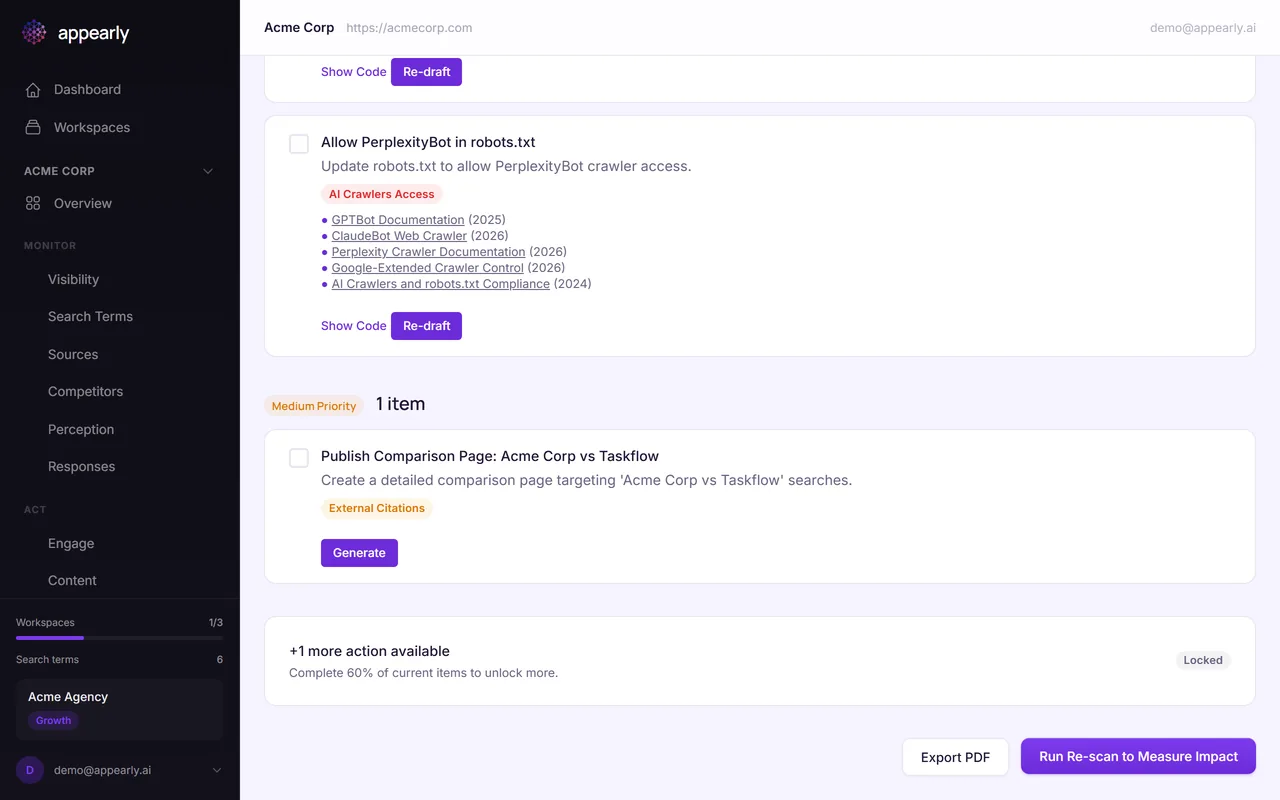
Action plans use progressive disclosure to keep you focused. Once you complete the visible items, select Reveal Next Items to unlock the next batch of recommendations.
This prevents overwhelm and keeps your team working on the highest-priority fixes first.
Export to PDF
Select Export PDF to download the entire action plan as a formatted document. This is useful for sharing with your development team, presenting to clients, or keeping a before-and-after record of recommended changes.