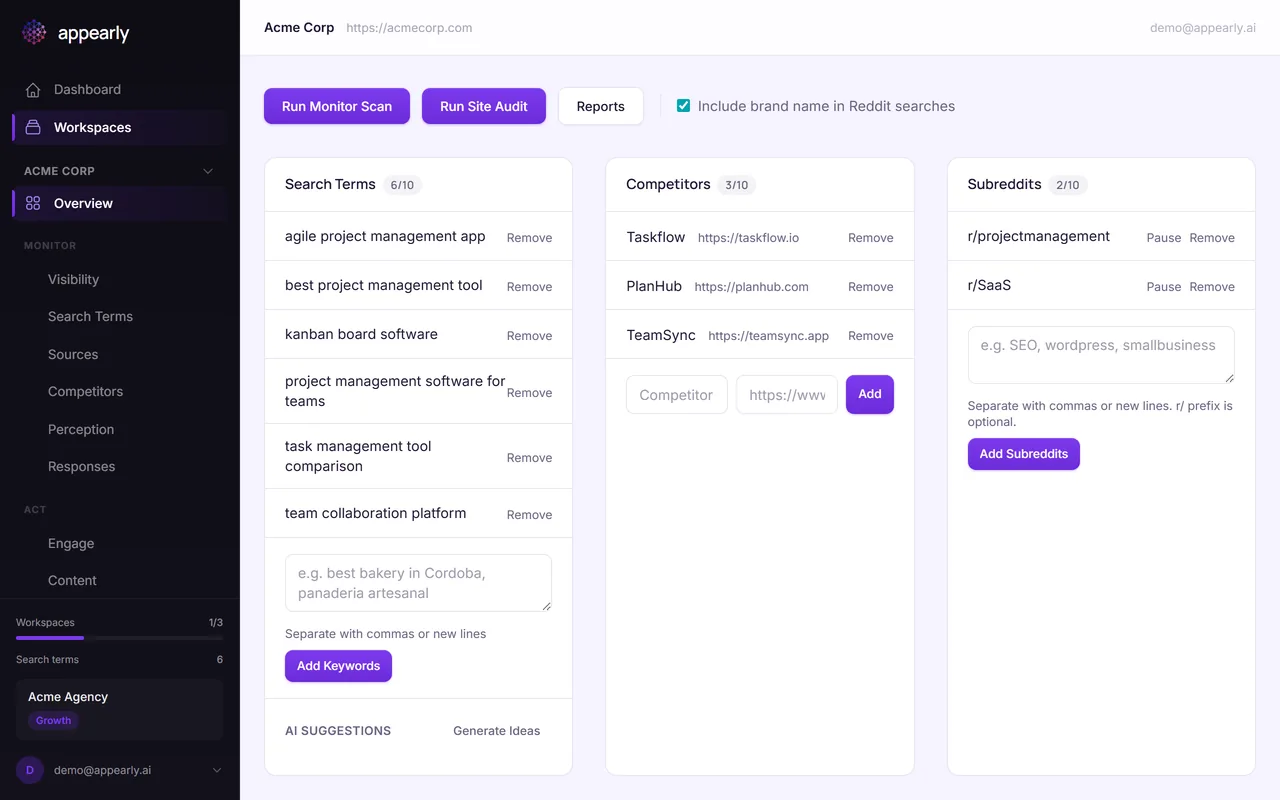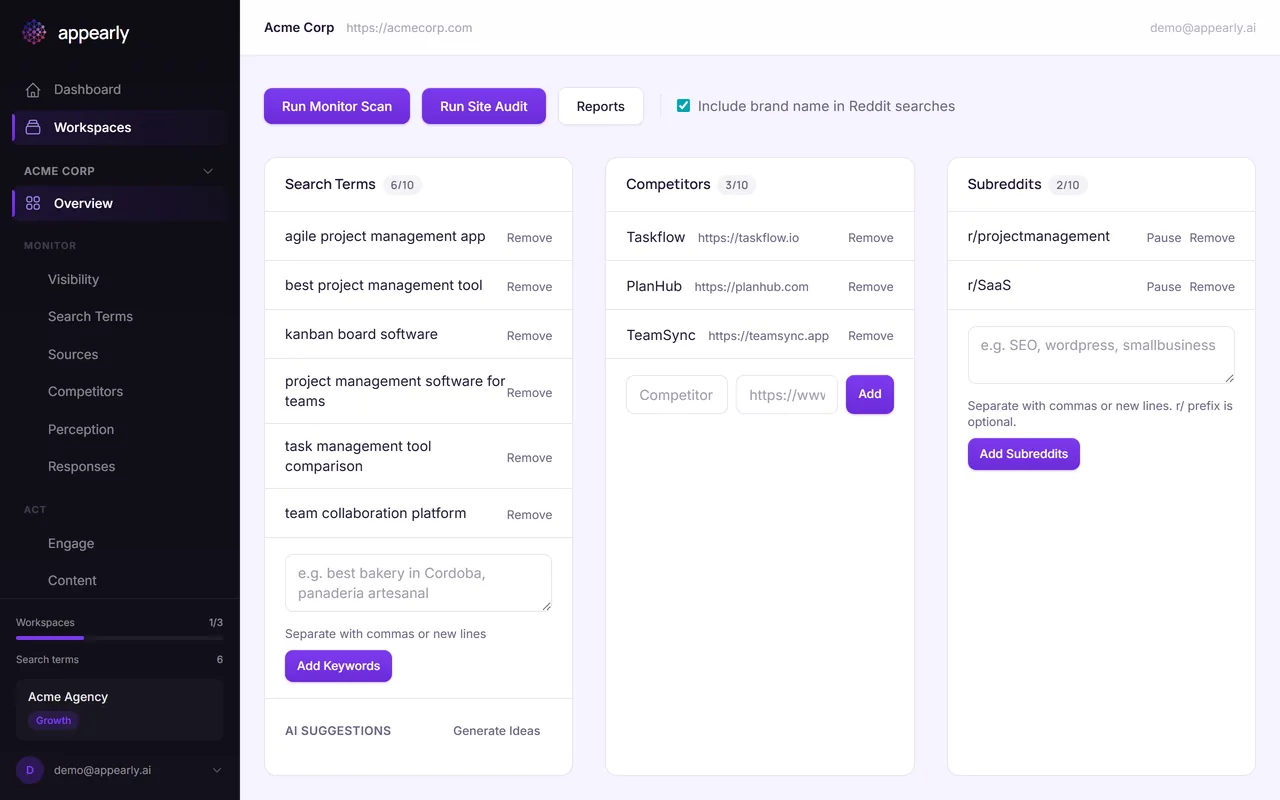
Adding Competitors to Monitor
Knowing your GEO score is useful, but knowing how you stack up against competitors is what drives strategy. This guide shows you how to add competitors to your workspace so Appearly can track how often they appear alongside (or instead of) your brand in AI responses.
In this article:
Open Your Workspace
Head to Workspaces and select the workspace where you want to add competitors.
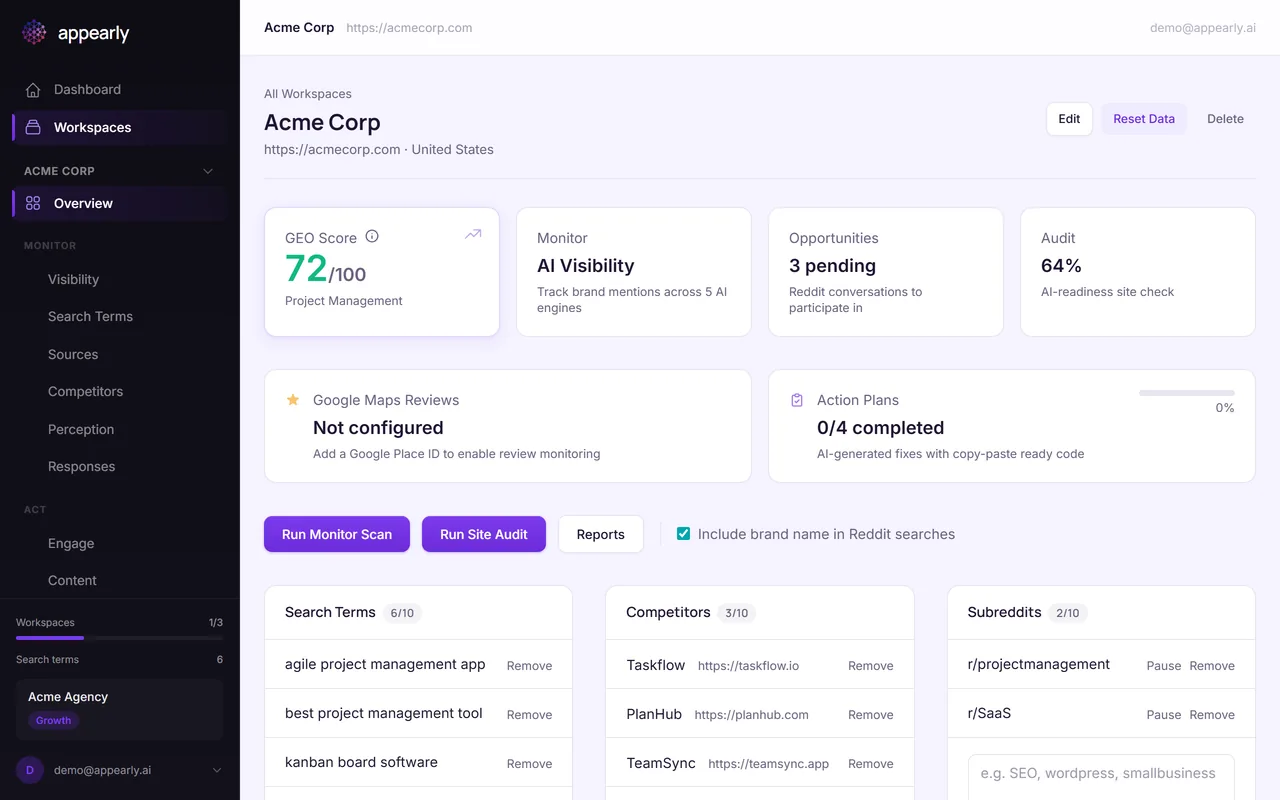
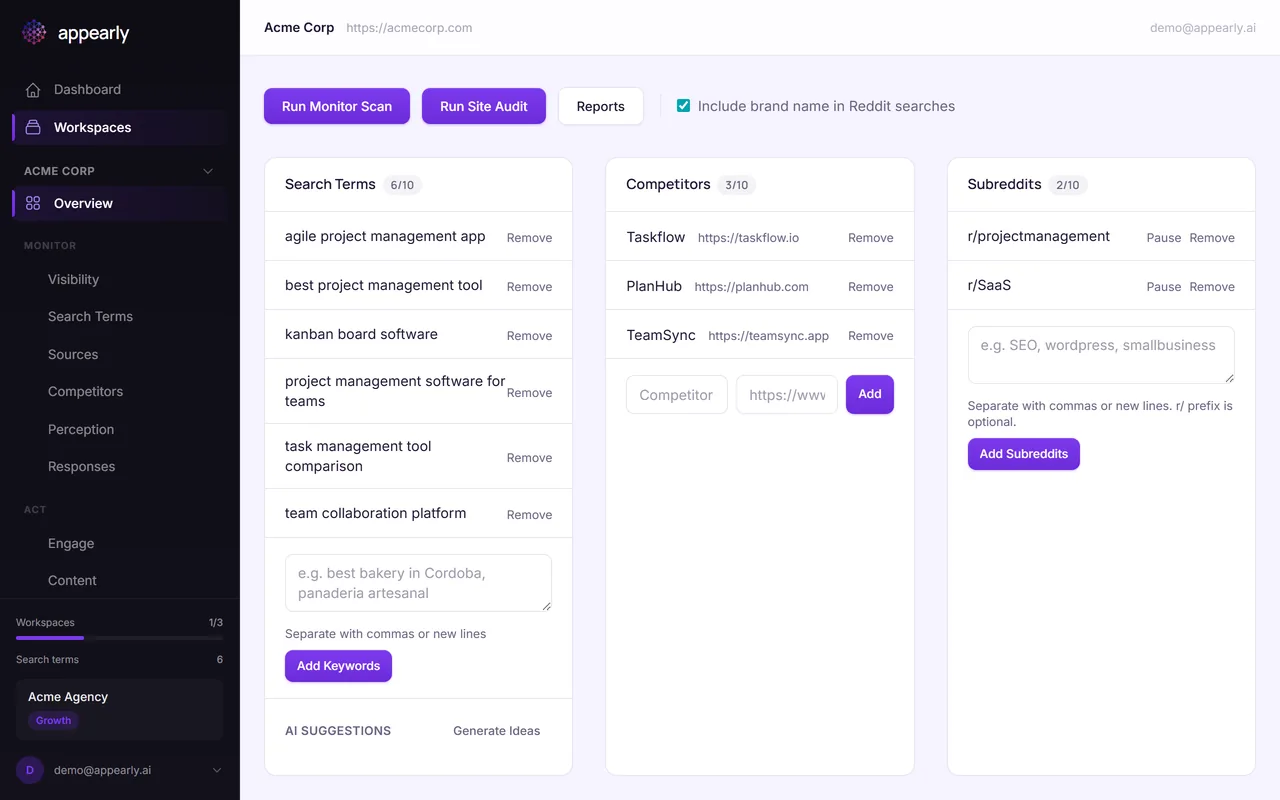
Find the Competitors Section
Scroll down past the Search Terms section until you see Competitors. Tracking competitors lets you see how often they appear in the same AI responses as your brand, which is essential for understanding your Share of Voice.
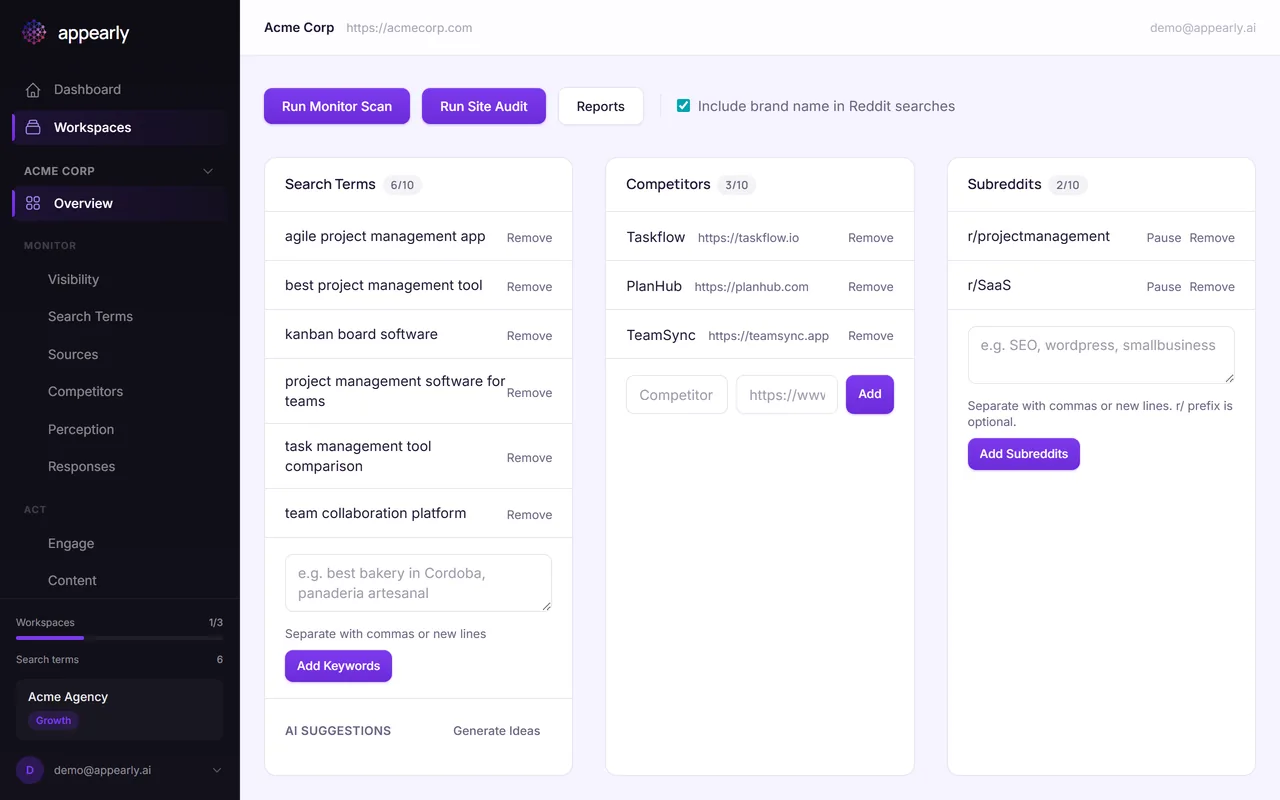
Add a Competitor
Select Add Competitor and enter the competitor's name and website domain. Appearly uses this information to detect when AI engines mention them in responses to your tracked keywords.
Pick competitors your audience would realistically compare you against. Direct alternatives, well-known players in your space, or brands that frequently show up in AI recommendations for your keywords.
Save and Start Tracking
Select Save. From the next scan onward, Appearly will track how often this competitor appears in AI responses compared to your brand. You'll see this data in the Competitors tab of your visibility dashboard.
Add as many competitors as your subscription allows, then run a scan to start collecting comparison data.