Adding Keywords to Track
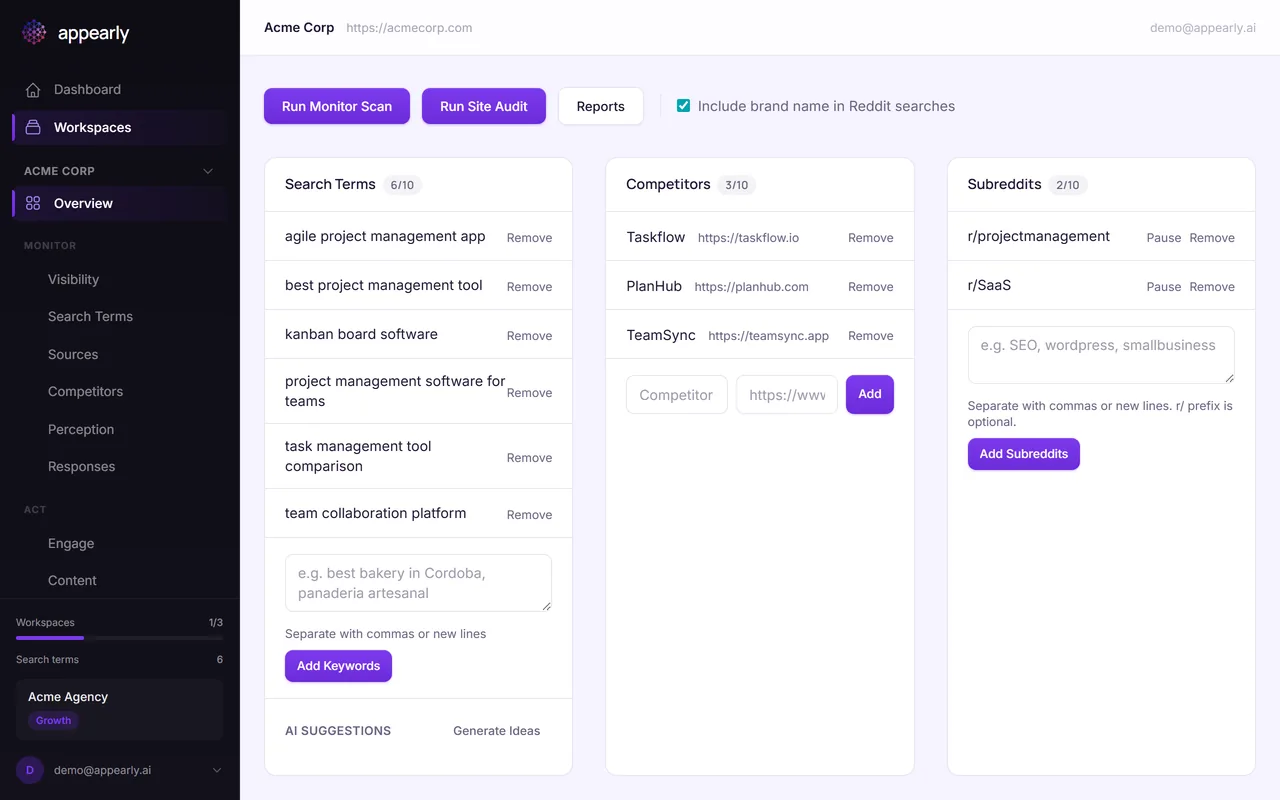
Want to know how visible your brand is when people ask AI for recommendations? It starts with keywords. In Appearly, keywords are the actual questions and phrases your audience types into AI engines like ChatGPT or Perplexity. This guide shows you how to add them to a workspace.
In this article:
- Open Your Workspace
- Find the Search Terms Section
- Add a New Keyword
- Save the Keyword
- Build Out Your Keyword List
Open Your Workspace
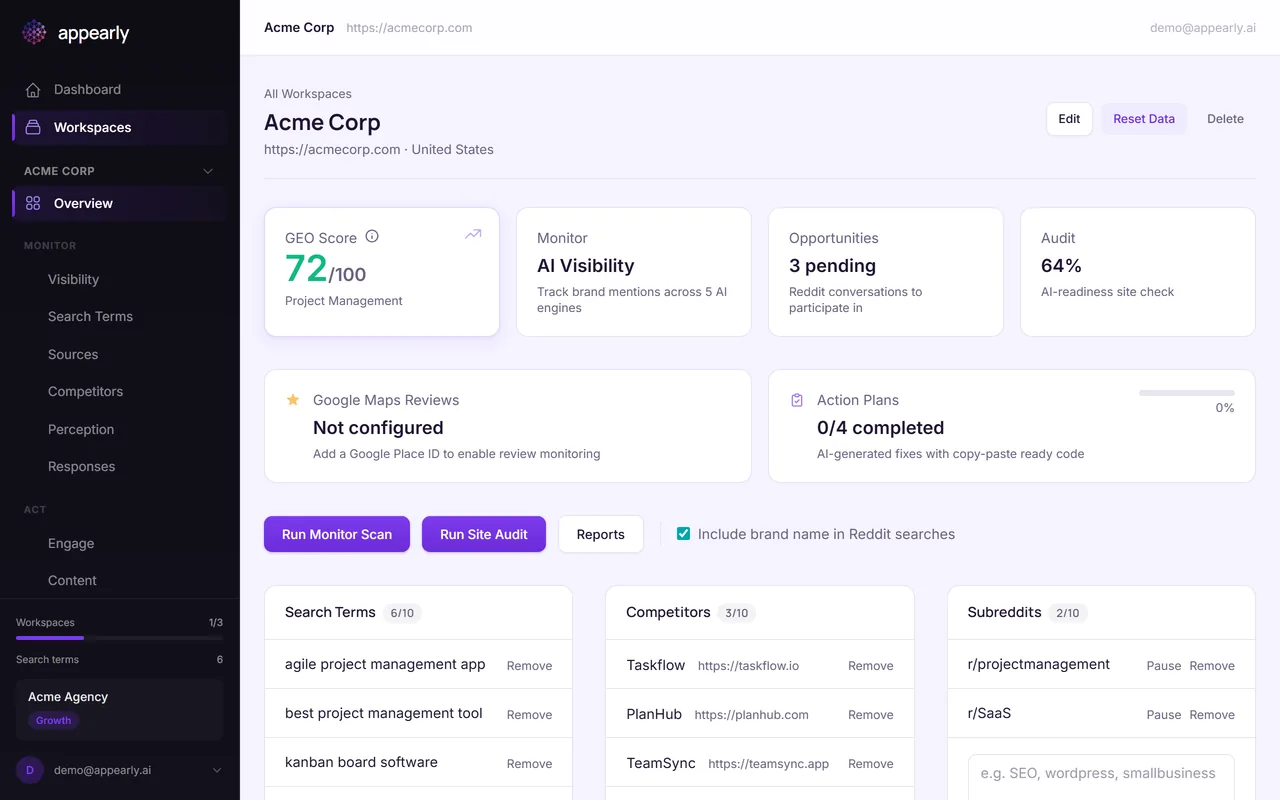
Head to Workspaces and select the workspace where you want to add keywords.
Find the Search Terms Section
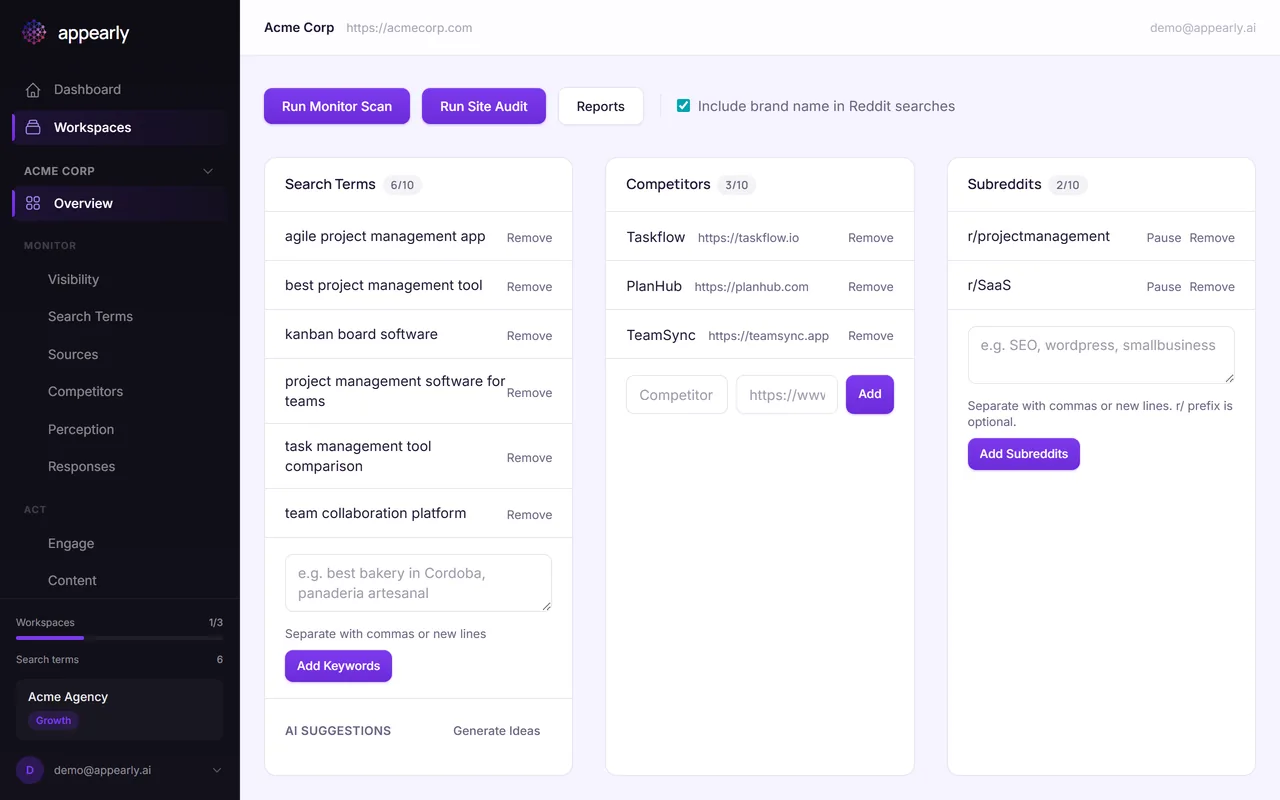
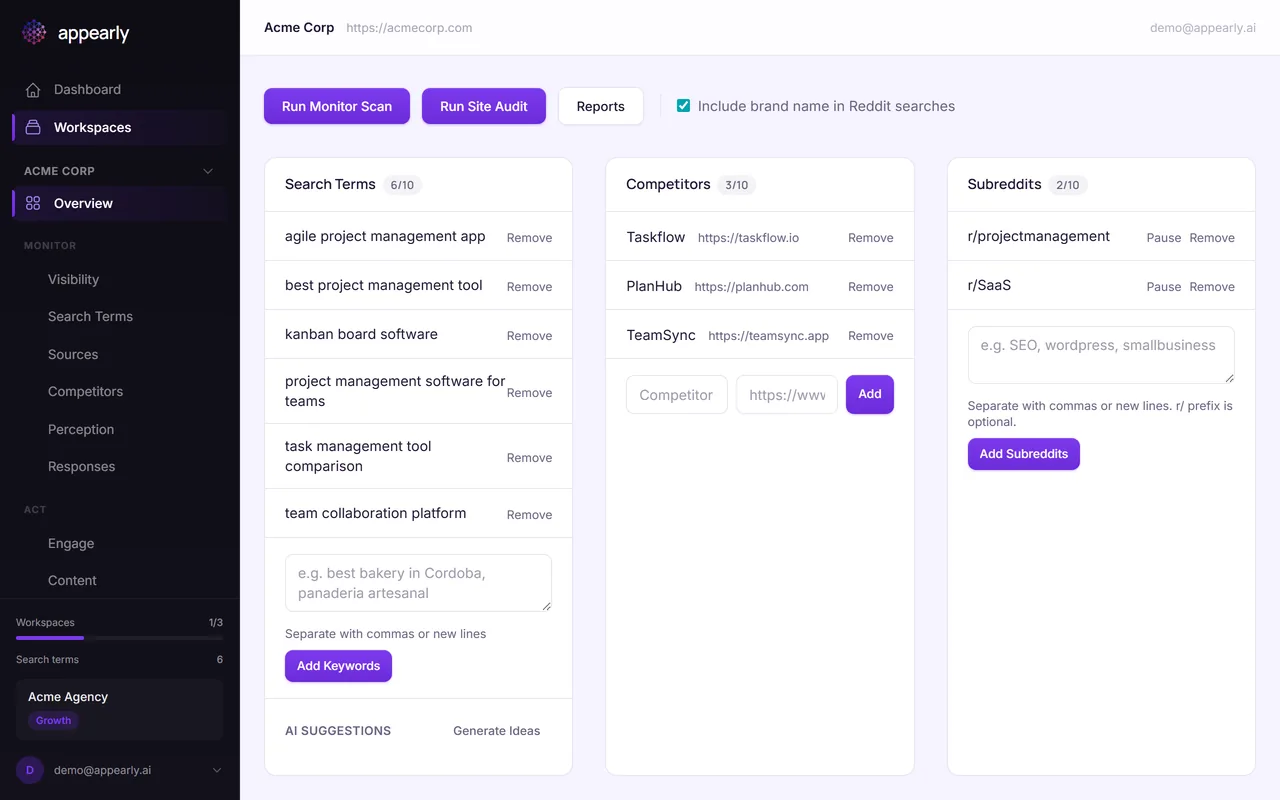
Scroll down to the Search Terms section. This is where all your tracked keywords are listed, along with their latest GEO scores.
Add a New Keyword
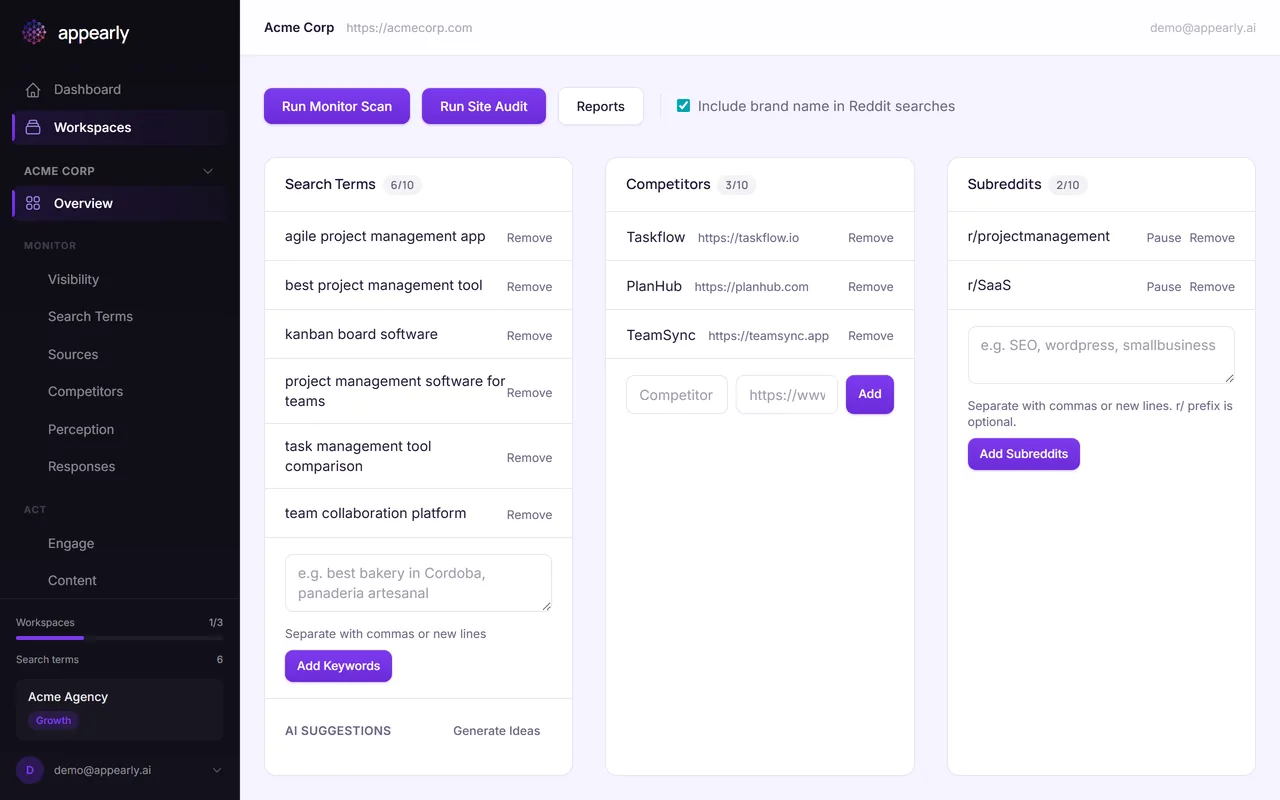
Select Add Keyword and type a search phrase your audience would actually ask an AI assistant.
The key here is to think conversational, not SEO. Instead of a short-tail keyword like "project management", write something like "best project management tool for remote teams". Natural language queries match how people actually talk to AI engines, and that's exactly what Appearly will test.
Save the Keyword
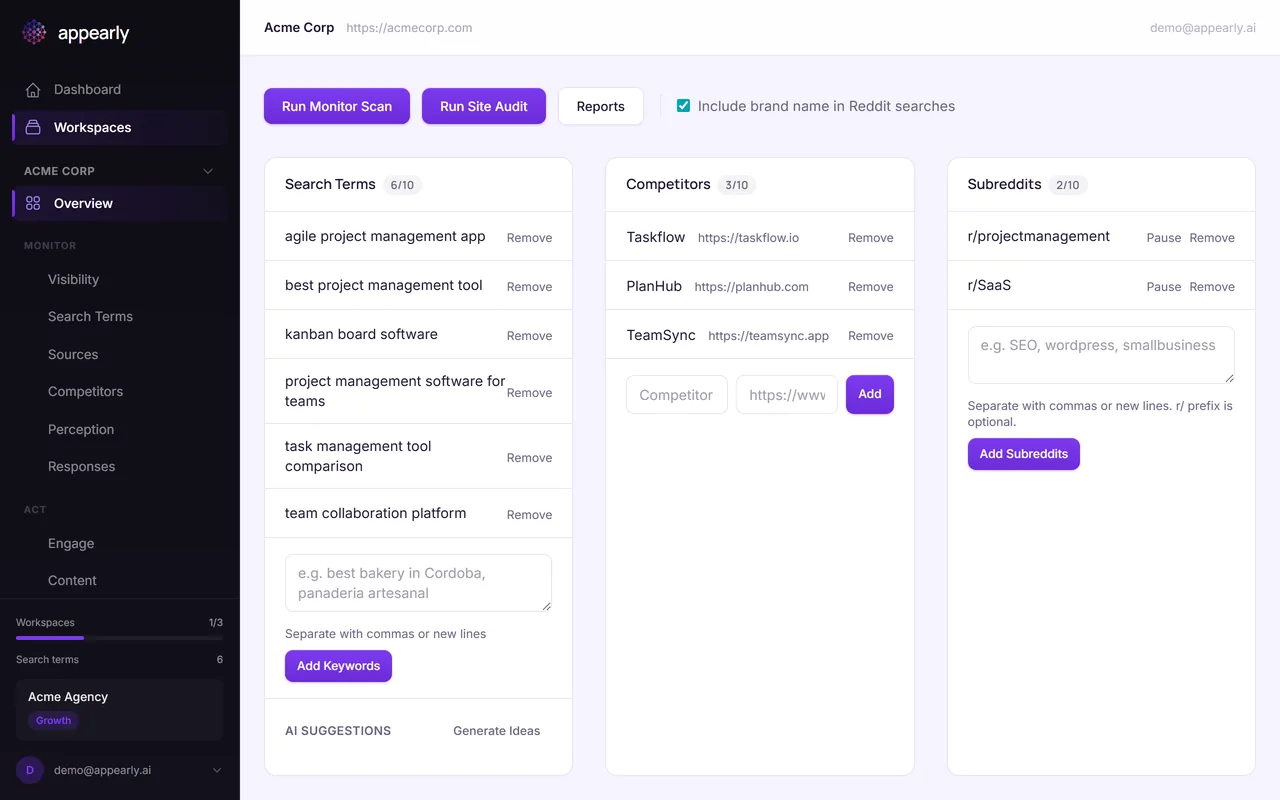
Select Save. This keyword is now part of your tracking list and will be included in your next visibility scan. Appearly will ask each AI engine this question and check whether your brand appears in the response.
Build Out Your Keyword List
Repeat this process to add more keywords. Aim for 5 to 10 search terms that cover the different ways people look for solutions like yours: comparison queries ("X vs Y"), feature-specific questions ("best tool for..."), and use-case questions ("how to manage...").
The more variety you add, the more complete a picture you'll get of your AI visibility.