Creating a New Workspace
Need to start tracking a new brand? In Appearly, every brand or product you monitor lives inside its own workspace. This guide shows you how to create one from scratch and configure it for your target market.
In this article:
- Go to Workspaces
- Start a New Workspace
- Enter Your Brand Details
- Set Your Region and Language
- Save and Start Tracking
Go to Workspaces
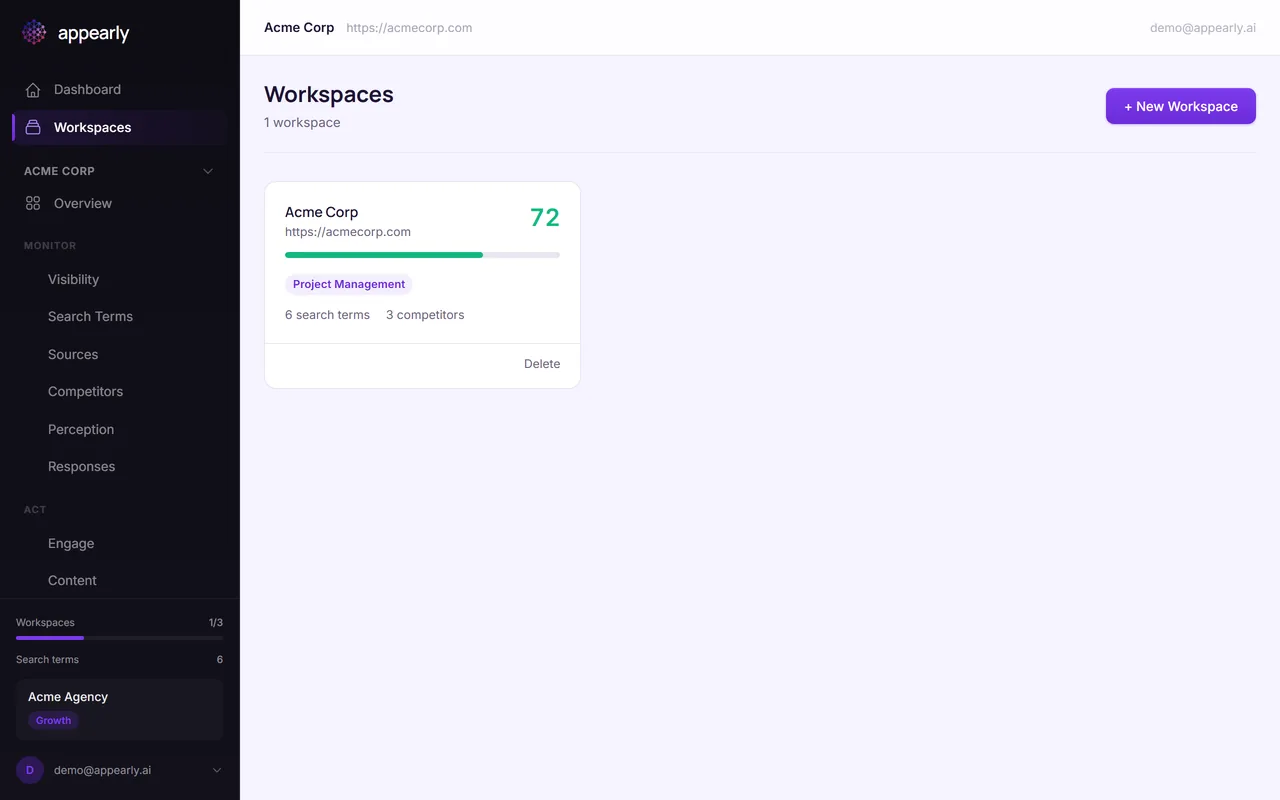
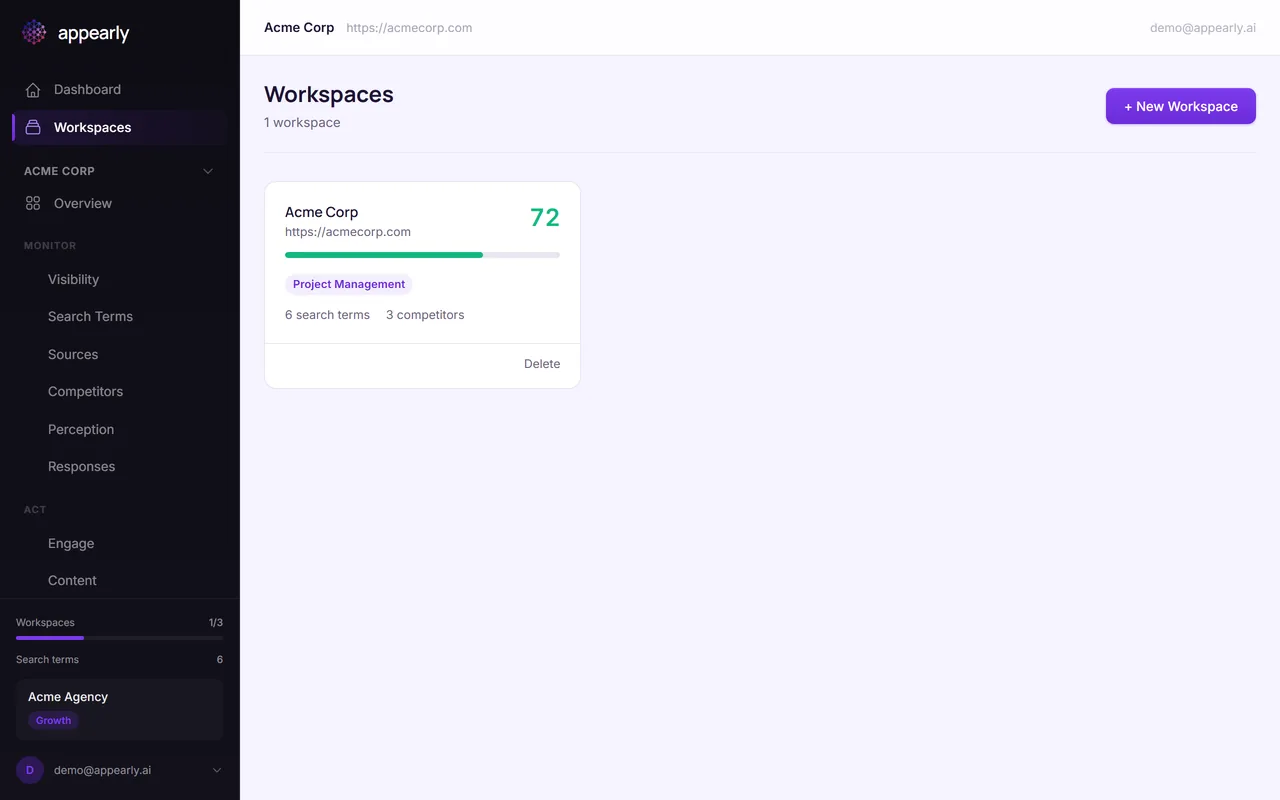
In the sidebar, select Workspaces to see all the brands you're currently tracking. If this is your first time here, the list will be empty.
Start a New Workspace
At the top right, select the + New Workspace button. Each workspace represents one brand or product you want to monitor across AI engines, so create a separate workspace for each one.
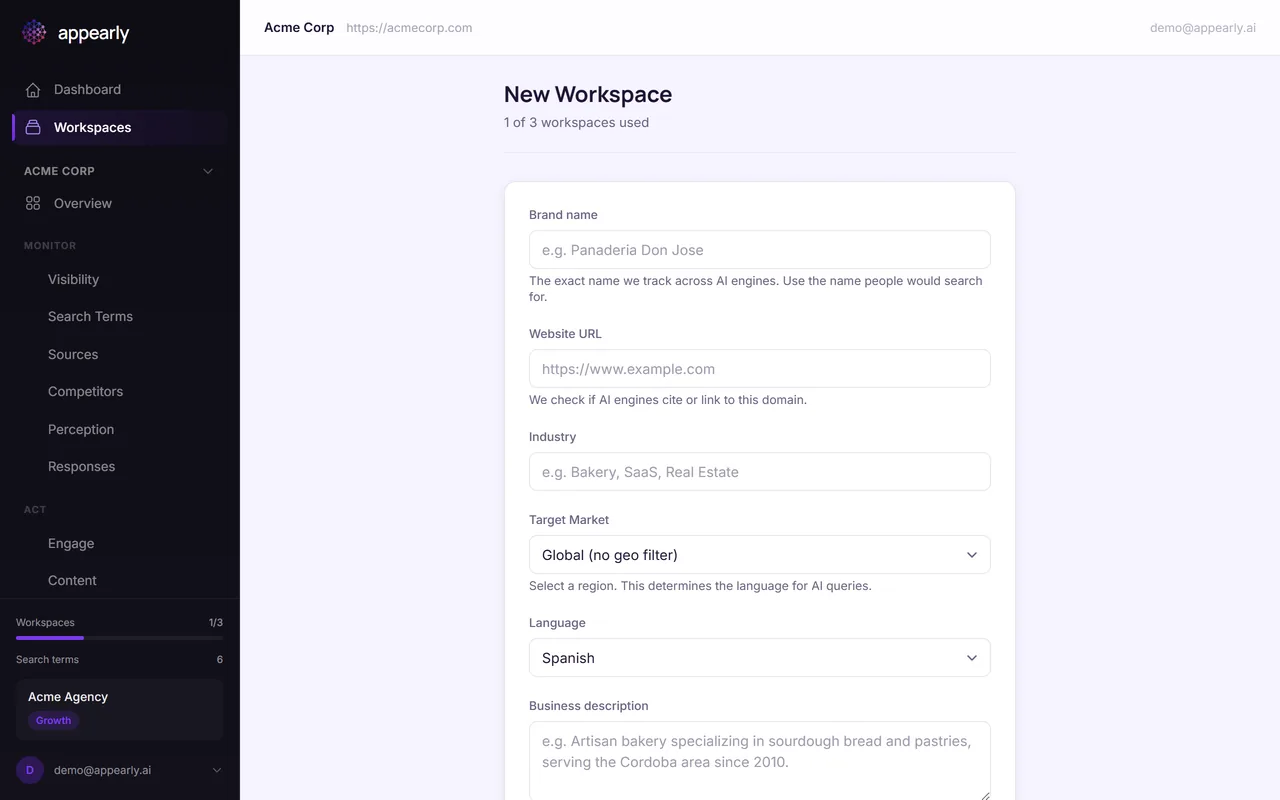
Enter Your Brand Details
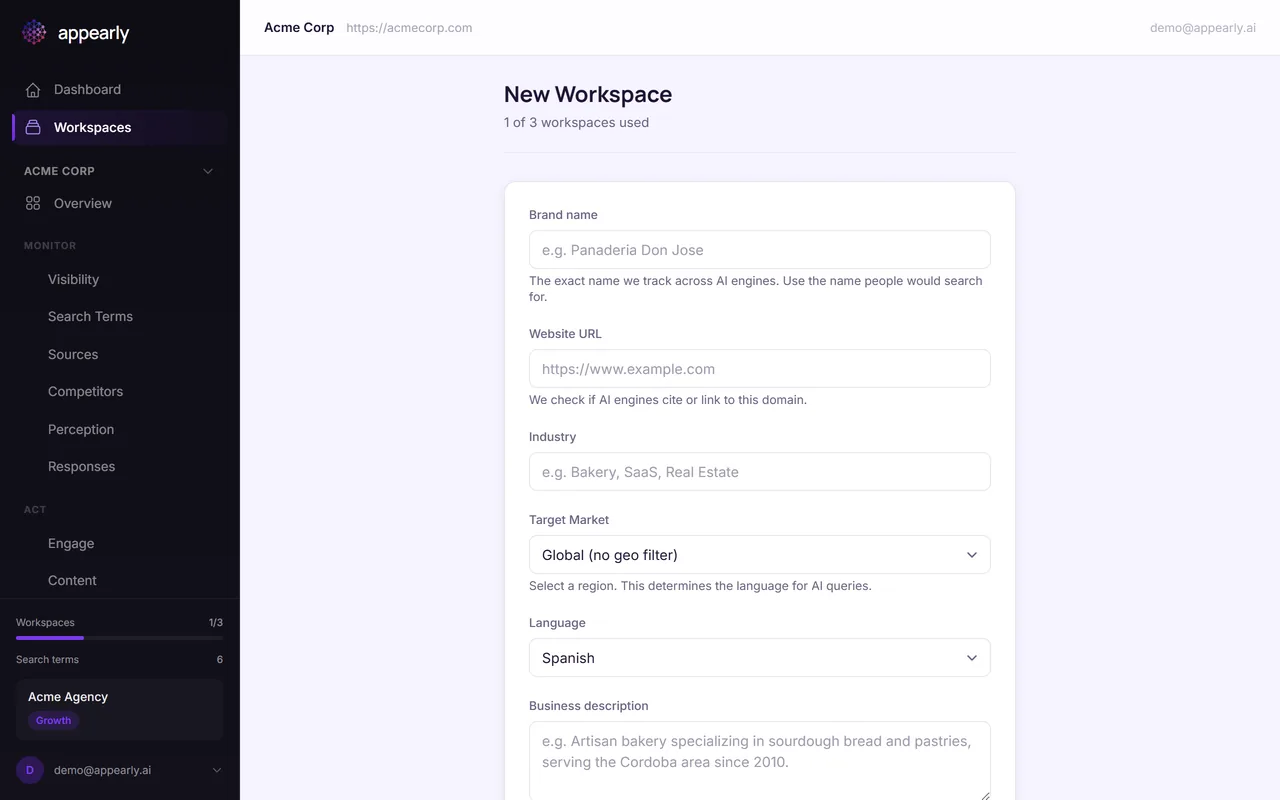
Now, fill in the basics:
- Brand Name: This is how it'll appear throughout Appearly.
- Website Domain: Your main website URL (e.g.,
acmecorp.com). - Industry: Pick the industry that best describes your business. This helps Appearly understand the competitive landscape for your keywords.
Set Your Region and Language
Next, choose your target region and language. This determines how Appearly phrases queries when it talks to AI engines on your behalf.
If your audience is primarily in the United States, select US and English. If you're targeting Spain, pick Spain and Spanish. Getting this right ensures the scan results reflect what your real audience sees.
Save and Start Tracking
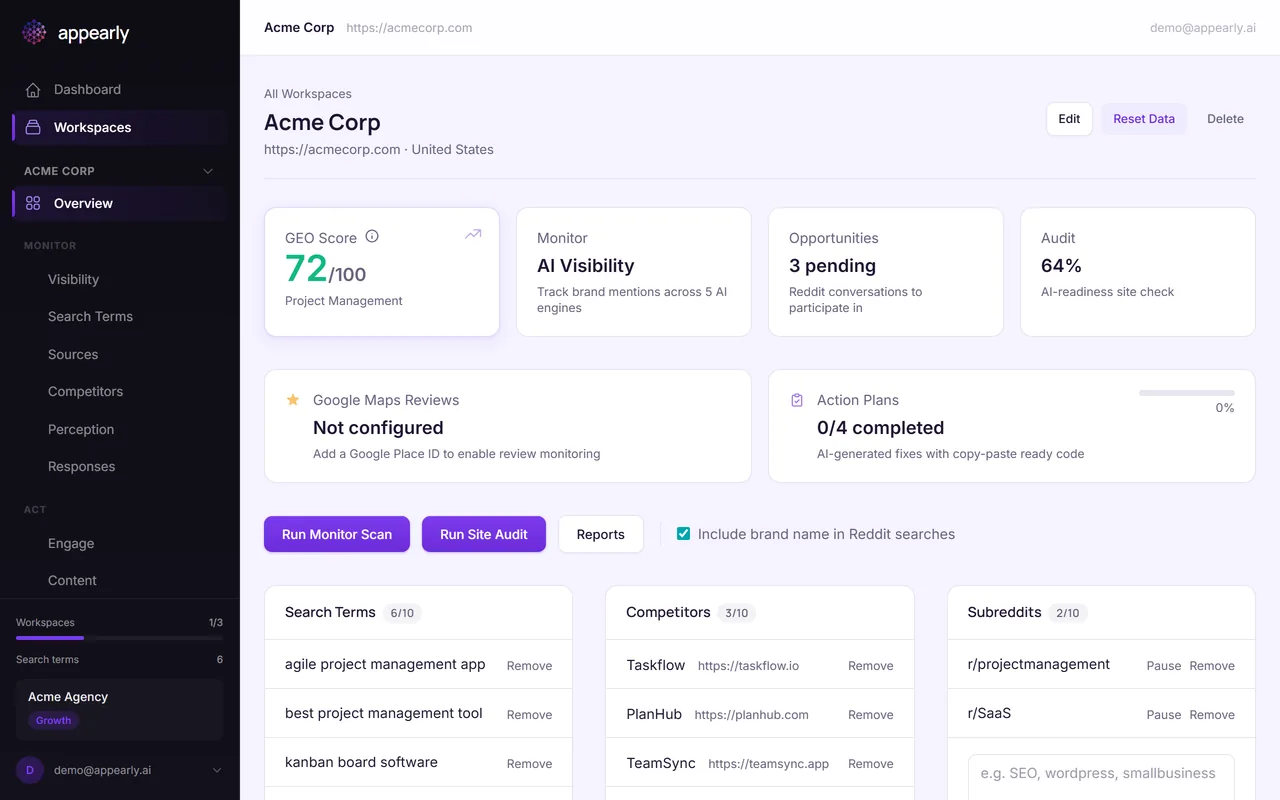
Select Save to create your workspace. You'll land on the workspace detail page, where your next step is to add the search terms and competitors you want to track.
Once that's done, you're ready to run your first visibility scan.