Generating Client Reports
Need to share your AI visibility progress with a client or stakeholder? Appearly's Reports feature compiles your GEO scores, scan results, audit data, and trends into a professional PDF you can download and present. This guide shows you how to generate, download, and use reports.
In this article:
Open the Reports Section
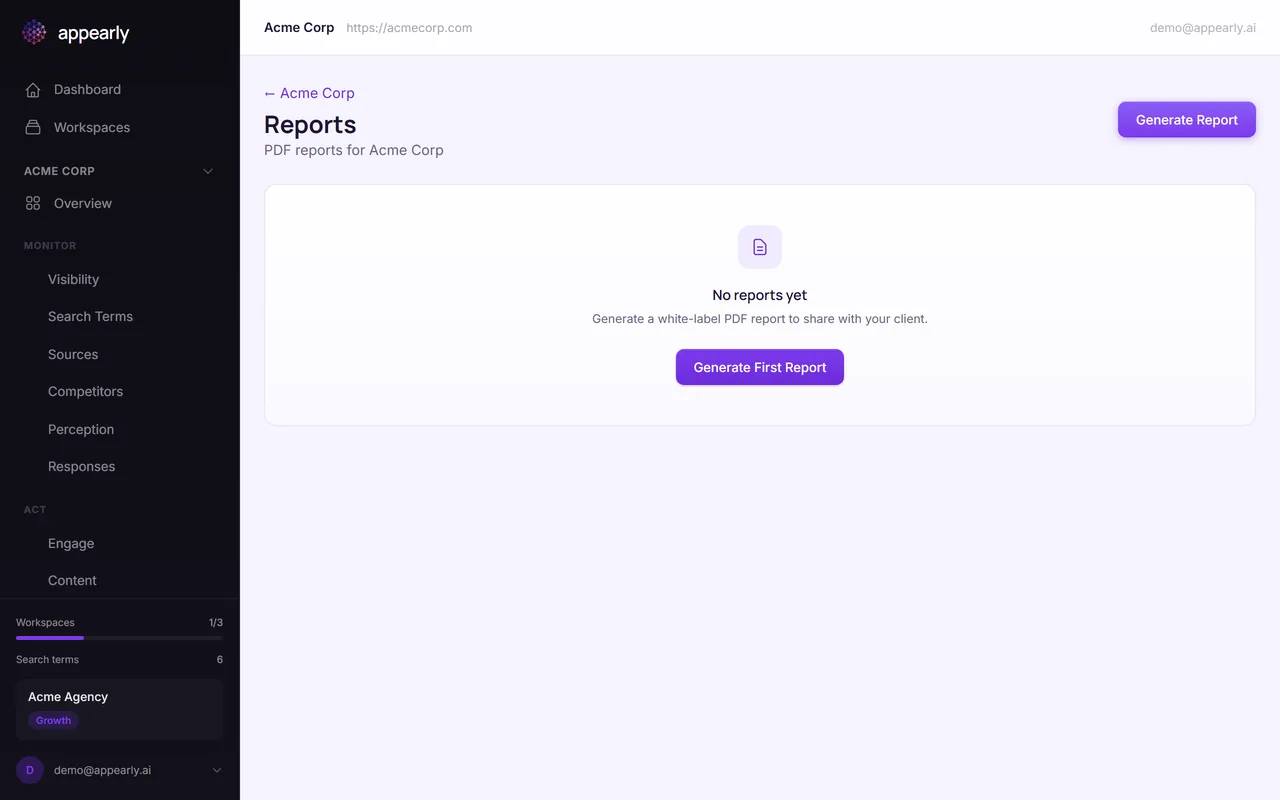
In the sidebar, select Reports for your workspace. This is where you create and access all your generated reports.
Generate a New Report
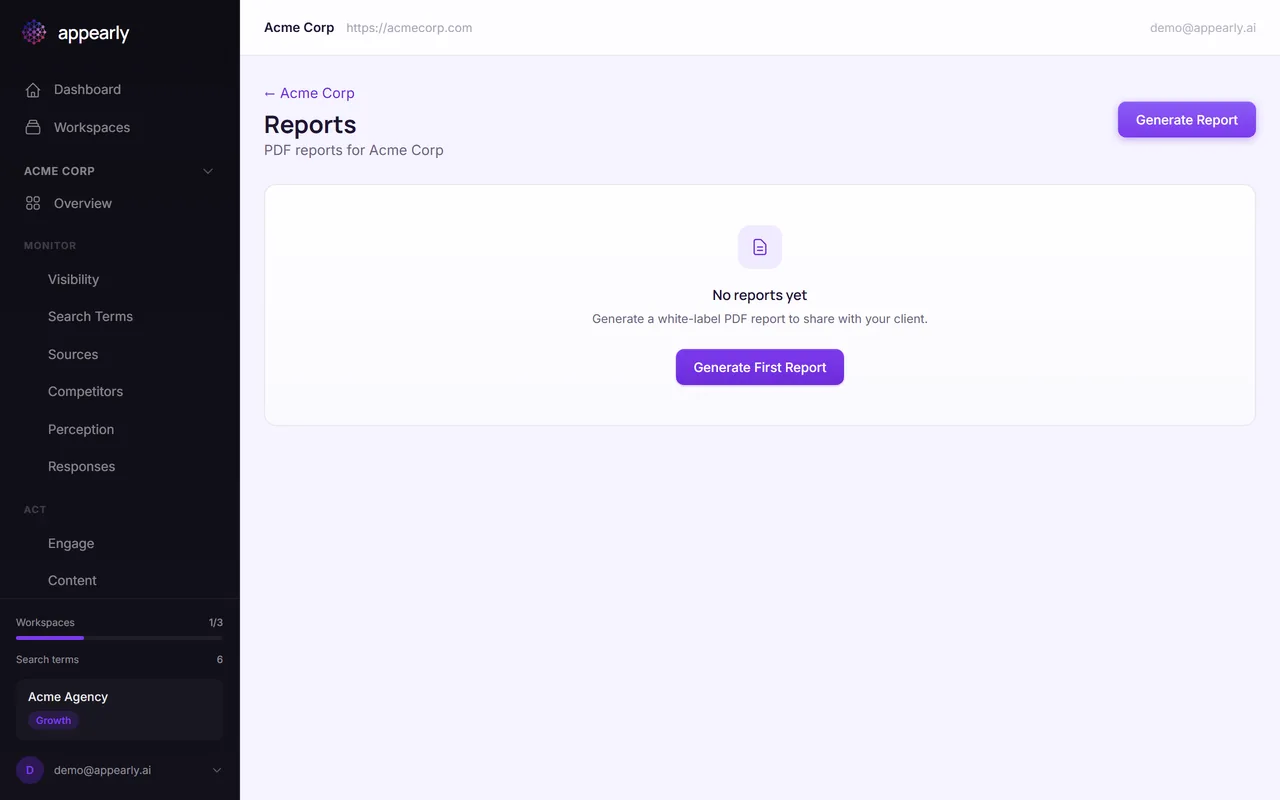
Select Generate Report. Appearly pulls together your latest GEO scores, engine breakdown, keyword performance, audit results, and historical trends into a single formatted document.
The report is designed to be client-ready out of the box: charts, score breakdowns, and recommendations all included.
Download the PDF
Once the report is ready, select Download to save it as a PDF. The report includes charts, score breakdowns, and recommendations, all formatted and ready to share in meetings or attach to emails.
Compare Reports Over Time
All generated reports are saved in chronological order. Compare reports from different dates to show clients how their AI visibility has improved over time.
This is especially valuable for demonstrating the ROI of your optimization work: "Here's where we were 3 months ago, here's where we are now."