Running Your First Visibility Scan
You've set up your workspace, added keywords, and configured competitors. Now it's time to run your first scan and see how visible your brand actually is across AI engines. This guide walks you through triggering a scan, reading the results, and understanding your GEO score.
In this article:
Open the Monitor Dashboard
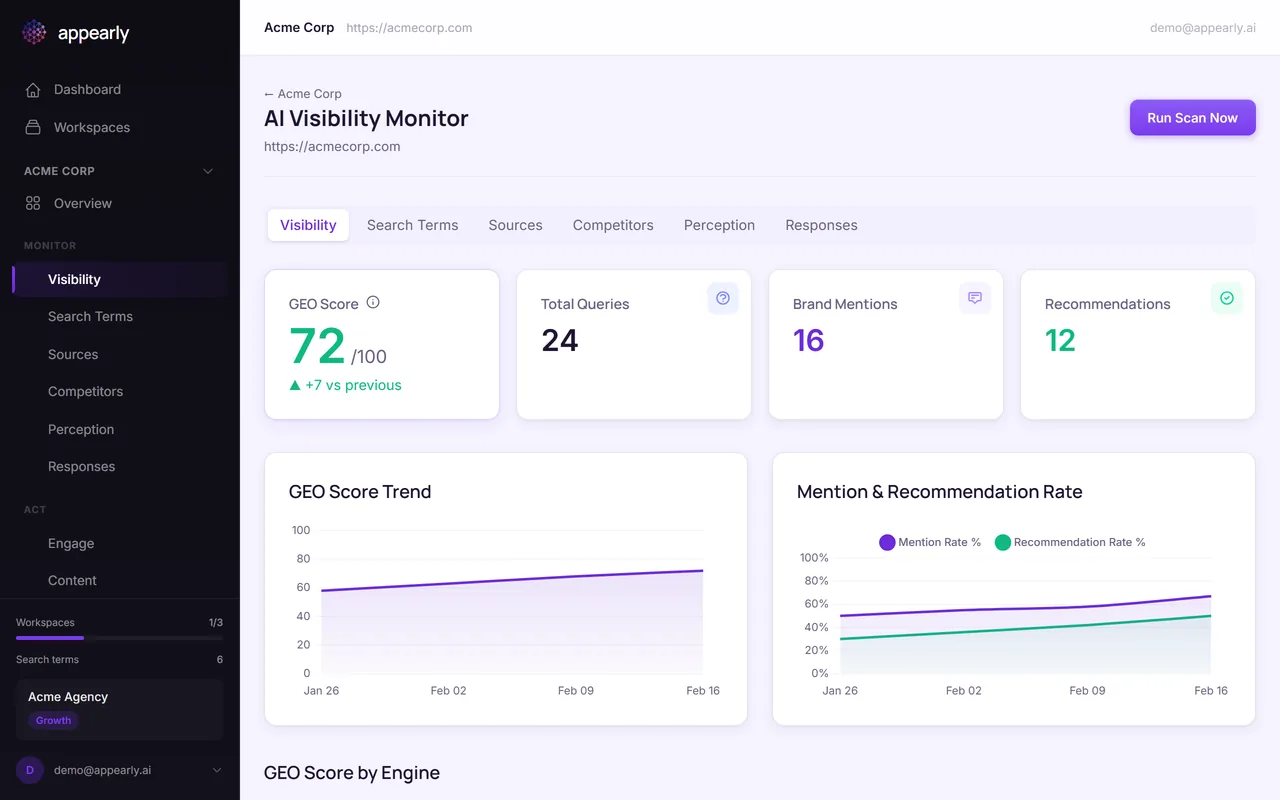
Head to your workspace and select Visibility in the sidebar (under Monitor). This is the central hub for tracking your brand's AI visibility.
Start a Scan
Select the Run Scan Now button in the top right. Appearly will query each AI engine (ChatGPT, Perplexity, Gemini, and others) with all your tracked keywords and analyze whether your brand appears in the responses.
This usually takes 1 to 3 minutes depending on how many keywords you have.
Review Your Results
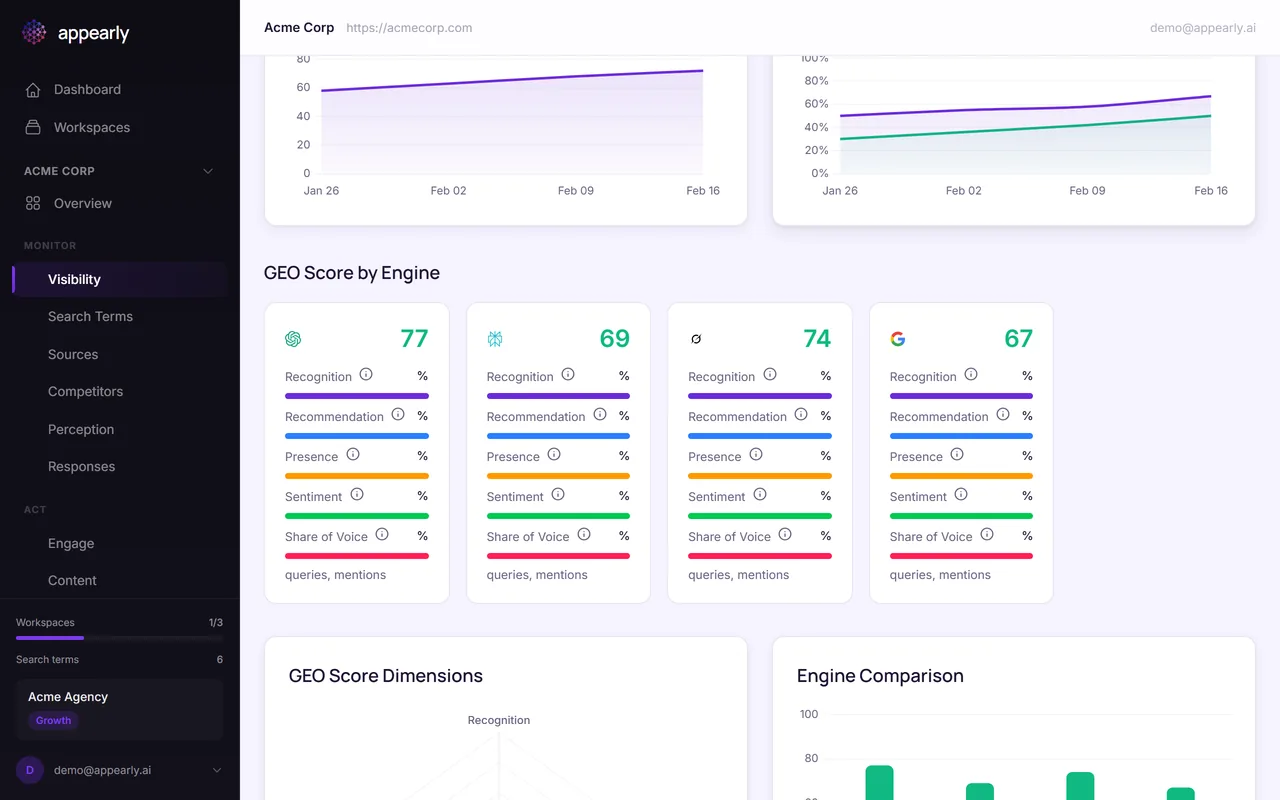
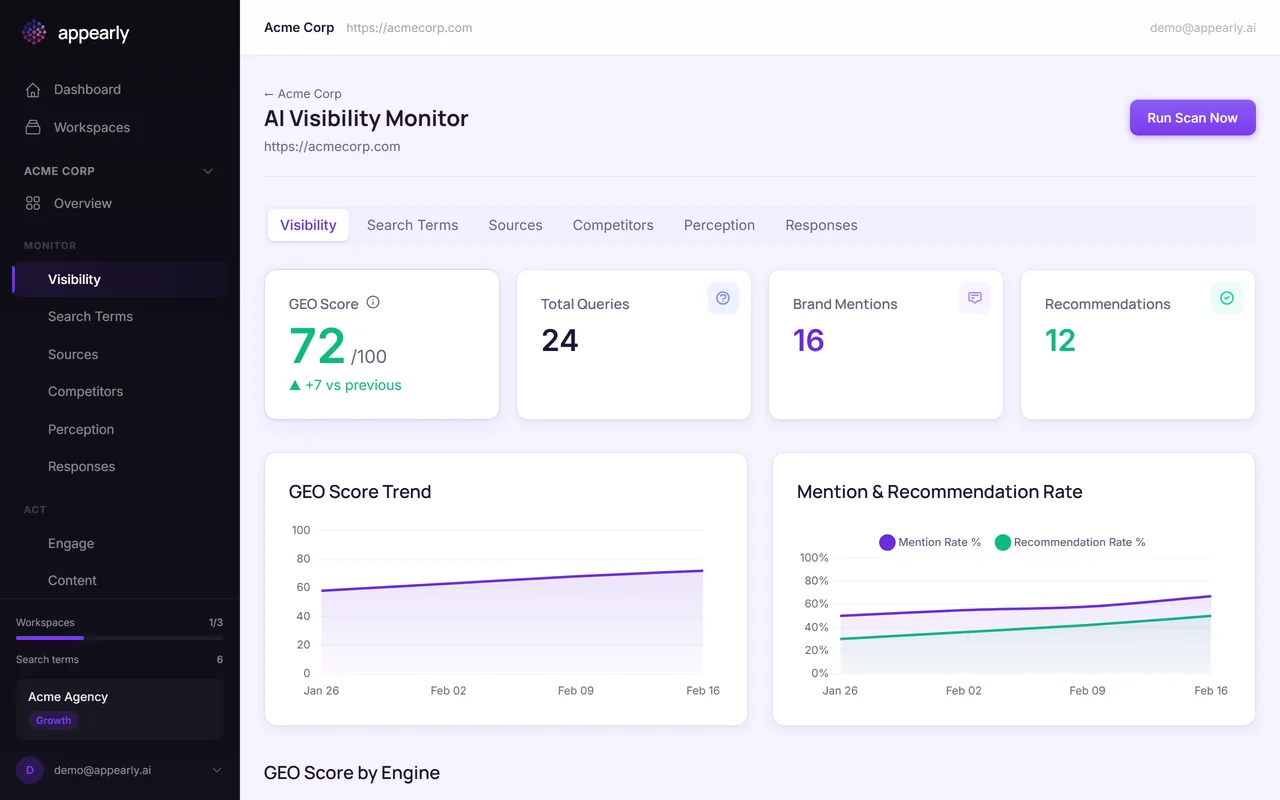
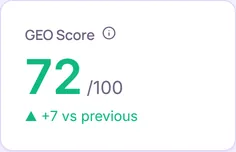
Once the scan finishes, your dashboard updates with fresh data. The big number at the top is your GEO Score, your overall AI visibility rating. Below it, you can see how each engine scored your brand individually.
Understand Your GEO Score
Your GEO score is calculated from 5 dimensions, each measuring a different aspect of how AI engines treat your brand:
- Recognition (20%): How often AI engines mention your brand at all.
- Recommendation (20%): How often they actively recommend you as a solution.
- Presence (20%): Where you appear in the response (first, second, third).
- Sentiment (30%): Whether the tone is positive, neutral, or negative.
- Share of Voice (10%): Your mention percentage compared to competitors.
Hover over any metric label on the dashboard to see its full definition. For a deep dive, check out the metrics glossary.